

About My Day
My Day gives you a single place to stay on top of your day. It brings together your next appointment, your full appointment list, your assigned tasks, and recent client activity, so you can prepare quickly and move between sessions with less clicking.
My Day was designed with mobile practitioners in mind, including those who travel between locations or provide home visits. The interface is adapted for smaller screens, making it easier to check client addresses, see what is coming next, and review your daily appointments and tasks from a phone or tablet without navigating between different areas of Zanda.
Use My Day when you want a clear daily workspace instead of moving between your calendar, tasks, notes, and client records.
- See your next appointment with key actions such as notes, messaging, telehealth, invoicing, and address access.
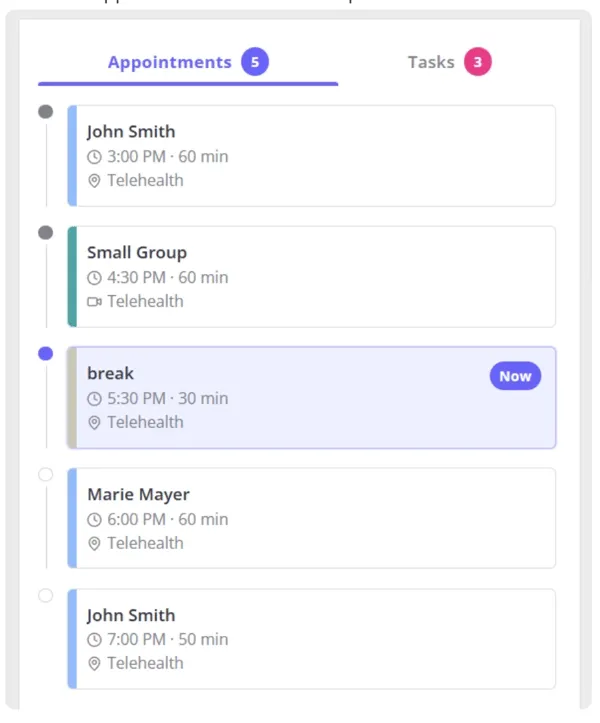
- Review your day in a time-ordered appointment list.
- Track your tasks without leaving the page.
- Prepare for sessions with recent activity and previous appointment summaries.
This is especially useful when you work on the move or need quick context between back-to-back appointments.
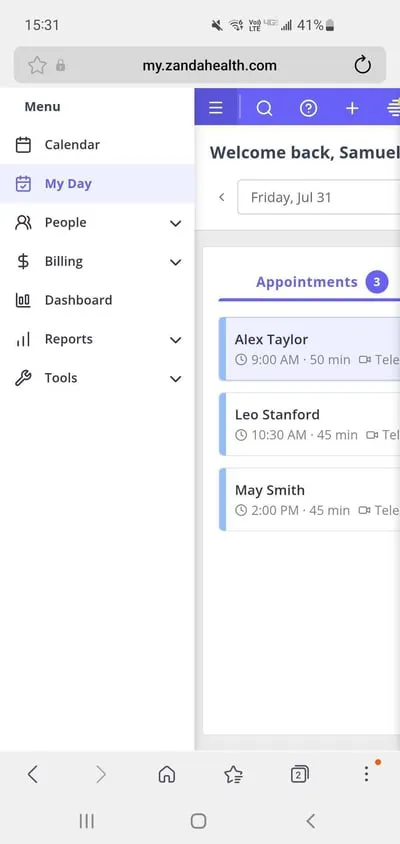
Joining the beta
My Day is currently available as a beta feature, which means your practice opts in to it rather than receiving it automatically.
- Select the Help menu.
- Select Beta Program.
- Follow the instructions on the page to register your interest.
Once your practice is added to the beta, My Day appears in the left-hand menu for users who meet the requirements in the next section.
If you do not see Beta Program in the Help menu, the beta sign-up link has not been switched on for your account yet. Email [email protected] and ask to join the My Day beta, and the team can arrange it for you.
Before you start
Two things determine whether you can see My Day:
- Your practice needs access to the beta. See Joining the beta above.
- Your user account needs a default practitioner. My Day is a practitioner’s view of the day, so your user account must be linked to a default practitioner profile. If it is not, the My Day menu item does not appear.
You also need the relevant permissions to open certain client content, such as clinical notes or forms. Some actions only appear when they apply to the appointment. For example, Start Telehealth only appears for telehealth appointments.
Not seeing My Day even though your practice is in the beta? Check that your user account has a default practitioner linked to it.
Opening My Day
- In Zanda, go to the left-hand menu.
- Select My Day.
- Review the page sections: the Appointments and Tasks tabs, and the Up Next card.
Using the appointment list
- Select the Appointments tab on My Day.
- Review your appointments in time order.
- Select an appointment to open it in the Up Next card.
Viewing a client appointment in detail
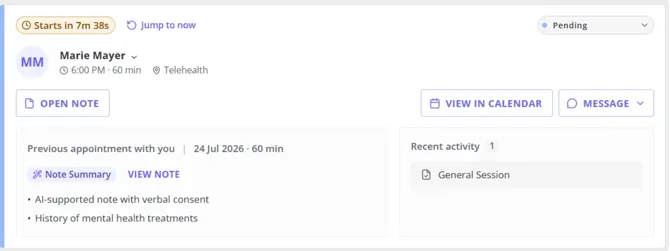
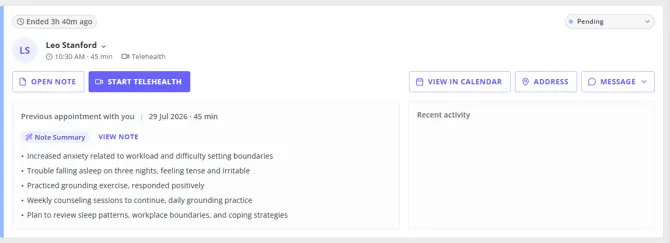
Select an appointment from the list to open it on the right-hand side of the page. When viewing an appointment in more detail, you’ll see the following functionality:
- Appointment details, such as client name, time, duration, location, and service.
- An AI summary of the client’s previous session note, when one exists.
- Recent activity, showing notes or forms created or completed since your last session with the client. Select a note or form to open it directly.
- Quick actions relevant to the appointment, which may include:
- Open Note to open the session note.
- Start Telehealth for telehealth sessions.
- View in calendar to jump to the appointment in the Calendar view.
- Message to send reminders or open the SMS panel.
- Address to open the client address in Google Maps.
- Invoice to edit, print, or email an invoice.
- A status selector at the top right of the card, so you can update the appointment status without leaving the page.
Viewing a group appointment in detail
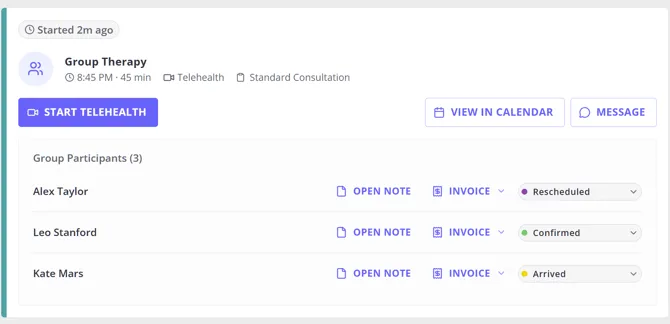
Select a group appointment from the list to open it on the right-hand side of the page. When viewing a group appointment in more detail, you’ll see the following functionality:
- Appointment details, such as group name, time, duration, location, and service.
- Quick actions relevant to the appointment, which may include:
- Start Telehealth for telehealth sessions.
- View in calendar to jump to the appointment in the Calendar view.
- Message to send reminders or open the group messaging panel.
- Invoice to edit, print, or email an invoice.
- A list of group participants, each with their own functionality:
- Open Note to open that participant’s session note.
- Invoice to edit, print, or email an invoice.
- A status selector to update that participant’s attendance status.
Using the Tasks tab
- Select the Tasks tab on My Day.
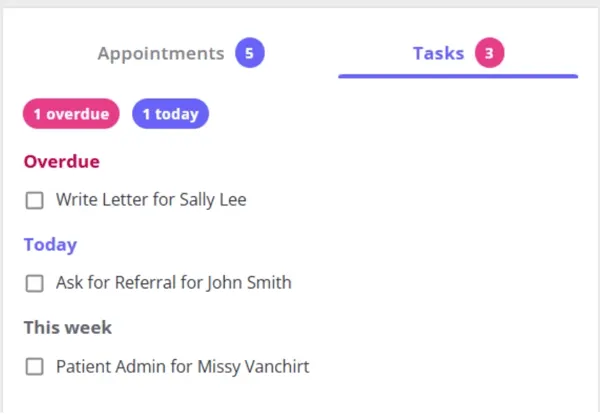
- Review your tasks, grouped as Overdue, Today, This Week, and Recently Completed. Only groups that contain tasks appear.
- Select the checkbox to mark a task complete.
- Clear the checkbox to move a task back to its active group.
- Select any View all link to open the full Tasks page.
The Tasks tab is being released separately during the beta, so your practice may have My Day before the Tasks tab appears.
Appointment statuses
You may see appointment statuses such as:
- Pending
- Confirmed
- Arrived
- Completed
- Rescheduled
- Cancelled
- Late Cancellation
- No Show
Status changes apply across Zanda, so the same appointment stays in sync between My Day and the Calendar view.
Changing the status of an appointment that has an active invoice. If you change an appointment to Cancelled, Late Cancellation, No Show, or Rescheduled, Zanda may ask whether you want to remove the service and delete the invoice.
Notes and recent activity
- Last Appointment with You shows the most recent previous appointment with that client, where one exists.
- If the client had a previous session with you, you see a short AI summary of that session note.
- Recent Activity shows notes and forms created or updated since the client’s previous appointment with you.
- Select the appointment comments icon to read appointment comments.
Frequently Asked Questions
❓ Why can I not see My Day in the menu?
Two things are required. Your practice needs to be in the My Day beta, and your user account needs a default practitioner linked to it. Check the default practitioner first, then see Joining the beta above.
❓ Why can I not open a note?
You may not have permission to open that client’s clinical note. In some cases you can still open admin notes even when clinical access is not available.
❓ Why do I not see Start Telehealth?
This action only appears when telehealth applies to that appointment. It is hidden for appointments where the action does not apply.
❓ Why do I not see an AI summary?
AI summaries require AI Services to be enabled for your practice, and the previous appointment needs a linked clinical note. If either is missing, no summary appears.
❓ Why is a task only showing under Recently Completed?
Recently Completed shows tasks you completed since the page was last loaded. If you refresh the page, completed tasks move out of that group.