
Finding a deleted appointment in the Deleted Appointments report
If you can’t recall the specific clients associated with your deleted appointment but remember the date range when it was created, you can easily find it by following these steps:
-
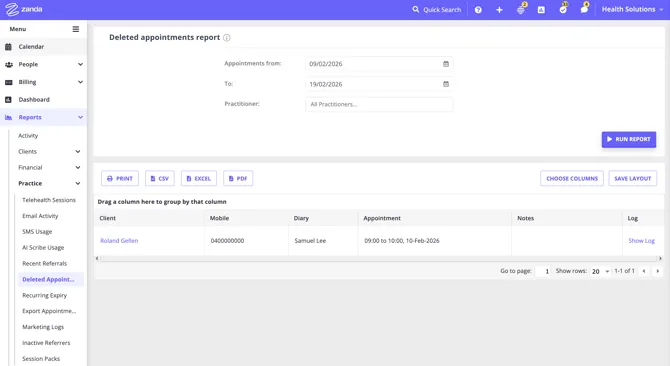
On the left-hand menu of the dashboard, click Reports and search for the Deleted Appointments report.
-
Choose a date range in which the deleted appointment was created and click Run Report.
-
From this list, scan through the client name and other data to identify the appointment you want to restore. Click the client name to open their profile.
Restoring a deleted appointment from the Client Profile
If you remember the specific client associated with the appointment, you can bypass the previous steps and directly access their profile using the Quick Search bar located at the top of the Zanda dashboard.
From there, follow these steps:
-
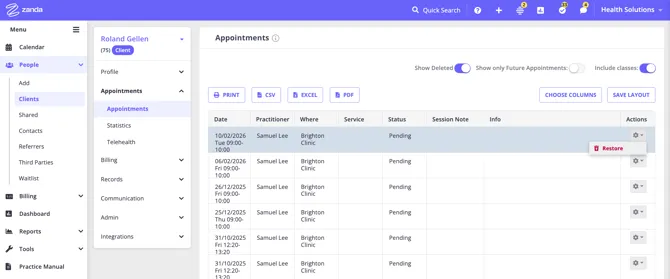
Navigate to Appointments
-
Toggle on the Show Deleted switch.
-
Click on the gear icon (under Actions) on the extreme-right side of the appointment you want to restore – and click on the Restore button.
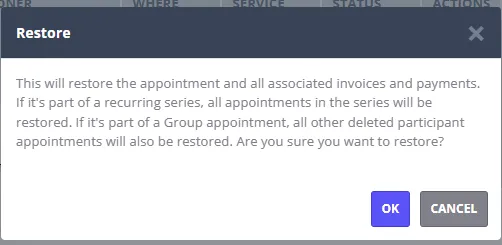
- Read the pop-up notification carefully and click OK to apply this action if you agree.
Your deleted appointment will be restored in your calendar with all associated records.
⚠️ Important Note About Recurring Appointments
If you restore an appointment that was part of a recurring series, all appointments in that series — along with their associated invoices — will be restored.
If you’re only interested in bringing back an invoice (and don’t need the appointment itself restored), consider restoring the invoice only instead. This avoids reactivating the entire appointment series.
👉 Learn how to restore an invoice only.
Troubleshooting: Entire Calendar Missing?
If you are looking for a deleted calendar because an entire practitioner’s column has disappeared from your diary view, this usually means the practitioner has been deactivated.
This is different from deleting a single appointment. To fix a “deleted calendar” of this type:
- Go to User Menu > Account Settings > Team > Practitioners.
- Follow the steps to Reactivate a Practitioner (toggle Show Inactive to find them).
- Once reactivated, their calendar and all previous appointments will be reinstated.
See the full guide here: Deactivating and Reactivating a Practitioner
Frequently Asked Questions
Why can’t I find an appointment in the Deleted Appointments report or with Show Deleted on?
The appointment was most likely cancelled rather than deleted. Changing an appointment’s status to Cancelled, Late Cancellation, No Show, or Rescheduled keeps it in Zanda with that status. It is never listed in the Deleted Appointments report or under Show Deleted, because both only show appointments that were actually deleted.
To find it:
- On the client’s profile: open Appointments and turn Show Deleted off. Cancelled, Late Cancellation, No Show, and Rescheduled appointments are listed with all the client’s other appointments, showing their status.
- On the calendar: select the three vertical dots in the calendar toolbar. If the menu reads Show unattended appointments, these statuses are currently hidden in your view. Select it to show them again. See Creating, Editing and Deleting a Client Appointment.
If the appointment’s invoice is missing: when you change an appointment that has an invoice to one of these statuses, Zanda asks Remove Service?: “Would you like to remove the service from this appointment? This will delete the invoice.” If Remove Service was selected, the invoice was deleted but the appointment was not. Restore the invoice on its own from the client’s Billing > Invoices page with Show Deleted turned on. See Deleting and Restoring Invoices. If the appointment has no other invoice, the restored invoice is linked back to it.
If you want to keep the invoice when you cancel, for example to charge a late cancellation fee, don’t select Remove Service when the prompt appears.
How can I tell who deleted an appointment?
Use the Deleted Appointments report to find the deleted appointment, then open the Log for that appointment. The log can show the appointment activity, including when the appointment was deleted and which user completed the action.
If the appointment is still visible on the Calendar, click the appointment block to open the Appointment Panel, then select Show Appointment Log in the Appointment Details section. This is the quickest way to review timestamped changes before you decide whether the appointment needs to be deleted, restored, or investigated further.