
Identifying Possible Duplicate Profiles
Zanda flags likely duplicates as you create them, and you can review the profiles you already have far faster than by scrolling your client list. There is no single report that lists every duplicate in your account.
-
Zanda checks for a match when you add someone new
When you create a new profile, Zanda looks through your active profiles for anyone with the same full name, the same email address, or the same mobile number. If it finds one, a Possible Existing Person window appears before the profile is created. It lists the profiles that could be the same person, each as a link you can open to check, and gives you two choices:
- Cancel to go back and use the existing profile instead.
- Create Anyway if this really is a different person.
The possible matches are also added to your Recent Clients list so you can get to them quickly. This check runs wherever a new profile is created, including from the appointment panel, and it applies when you add a contact or a shared profile member as well as a client. Catching a duplicate here is much less work than merging one later.
-
Reviewing the profiles you already have, using an export
The quickest way to spot existing duplicates is to get your client list into a spreadsheet and sort it:
- Go to People > Search (with the Clients profile type selected) and click Show All, or switch to Advanced search if you want to narrow the list first (you can filter by any part of an email address, and choose whether to include archived profiles).
- Choose the columns you want to see, including Email and Mobile.
- Export the results to Excel or CSV.
- Sort the spreadsheet by email address or mobile number. Duplicates land next to each other, which is far faster than reading the list on screen.
You’ll need the Advanced Client Search and Export permission for Advanced Search, Show All, and the export options. If you’d rather work from a complete data file, Tools > Data Export can produce a Client Profiles export with client number, name, email, mobile, date of birth, and created date. That one runs in the background and can take up to two hours.
-
Using the New Clients Report
Click Reports and search for the New Clients Report, a good way to check recent additions. You can use grouping (drag a column to the grouping bar) or filters to spot matching details. Two things to keep in mind: it covers a date range and defaults to the previous month, so it won’t sweep your whole account; and it only includes client profiles, so it won’t pick up duplicate contacts, referrers, or third party profiles.
How to Merge Profiles
Note: We are using a client profile merging to demonstrate this feature, but the same instructions are applicable to any type of profiles available in Zanda.
Once you’ve identified the duplicate profiles,
- Access the profile with the least details.
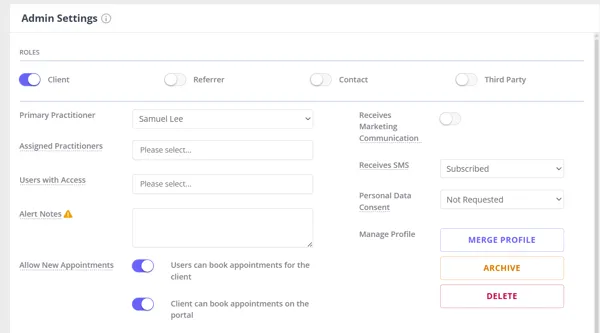
- Under Admin > Manage click Merge with Another Profile.
- Search for and select the client to merge into.
- Closely review all of the information displayed on the confirmation window and ensure that the client record being deleted is correct.
- Click OK to confirm the merge.
- The information recorded on the client Details page will not be merged across. Please check each client record prior to merging and ensure that you are merging from the client profile whose details you don’t want to store. In that client profile, under Admin > Manage, select the duplicate profile you want to keep in your account. We recommend using the client numbers as references as to which is which.
- Merging Client Profiles with Stored Credit Card Details
When merging client profiles, stored credit card details are only retained if you merge into the profile that already has the card on file.
To ensure no credit card information is lost:
-
✅ Merge the profile without card details into the one with card details.
-
❌ If you merge the other way around, the credit card information will not be transferred.
-
Communication history: In most cases, the communication history from both profiles will appear in the merged profile. However, in some situations certain communication records linked to the profile being deleted may not carry across, and they cannot be accessed after the merge. Before merging, open the Communication section of the profile that will be deleted and save or note anything you need to keep. If communication records appear to be missing after a merge, contact our support team.
-
Managing Xero export: all invoices and payments recorded in the two profiles will be moved in one merged profile. However, you might need to merge the relevant contacts in your Xero account, and update the Xero Contact ID in the merged profile in Zanda, as advised here.
What is Merged Across?
- Additional Comments from the Details page;
- Communications (SMS and email history)—in most cases; see the Important note above;
- Appointments;
- Session Notes;
- File Uploads;
- Reminders;
- Referrals;
- Invoices and Payments;
- Statements;
- Session Packs;
- Contacts;
- Admin Notes (under Profile > Admin > Admin Notes)
- Saved bank card details
Client forms and online form responses are not included in the list of records merged across. If you need to check whether a client completed a form before or around the time profiles were merged, click Reports and search for Client Forms. Filter by Form Completion Date and Completed status, then use the client number and form name to identify the submission.
Importa nt: If you are currently having your data imported, duplicate client profiles should not be merged until the import is fully complete, which includes the importing of documents/notes. If done prior to this, then the documents/data that have not yet been imported, will likely not end up in the merged profile.
Frequently Asked Questions
Two client files have been merged by accident - how do I reverse this?
Once profiles have been merged, this can’t be reversed. When a client profile is merged, the system essentially deletes one of the profiles and moves supported records to the other. Due to the nature of this process, it’s not possible to undo it. Appointments, notes, invoices, payments, and the other records listed above will now be recorded in the merged profile. Communication history is included in most cases—see the Important note above for situations where some communication records may not carry across.
As a workaround, you can create the client profile anew and manually input the information that was moved to the merged profile.