
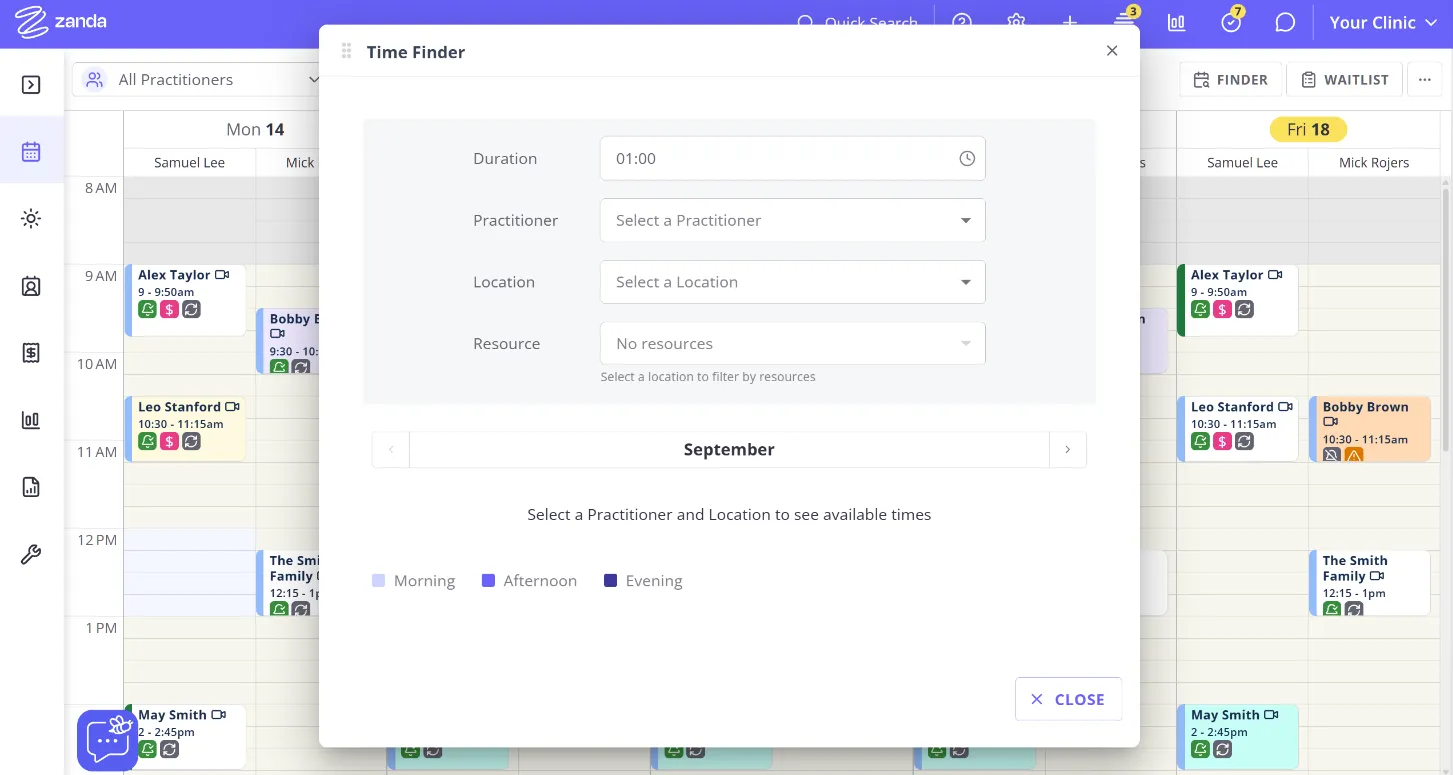
The Time Finder helps you find an empty slot in your Zanda calendar so you can quickly book an appointment for your client. The times shown in the time finder are based on the times made available for each practitioner in each location. To access the Time Finder, you can click on the Finder button in the calendar tools:

This will bring up the Time Finder tool. To get started, set the filters to your desired settings. This includes:
- Duration: Specify the time duration of your appointment (in hh:mm format).
- Practitioner: Choose the practitioner that will be taking the appointment.
- Location: Set the location where your appointment will take place.
- Resource (optional): Choose a resource item if you require one for the appointment.
💡 Hint: If you aren’t seeing any available times for a location, please check User Menu > Account Settings > Team > Availability and make sure the practitioner has an availability with times set for that location.
After applying your desired filters, the time finder will quickly display open time slots that match your desired settings.
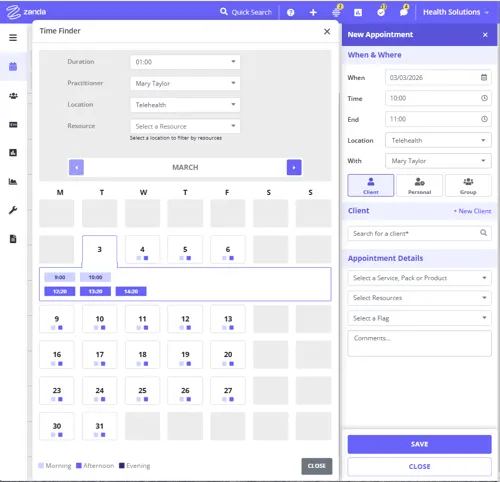
- Click on a suitable date, and choose a time.
- This will open the appointment settings panel on which you can finalize the booking.
- If you have selected a resource item this will be pre-selected in the appointment panel.
- Close the time finder window to proceed with booking the appointment.