
What are Scored Forms?
Scored Forms are online forms with calculated fields using which you can
- Assign score values to options in single choice and multiple choice questions.
- Create score totals (e.g. “Overall Anxiety Score”, “Total PHQ-9 Score”).
- Add assessment score interpretations to automatically interpret numeric scores
- Automatically calculate and interpret scores when a client submits a form or when a practitioner Save & Complete a form.
- Display scores and interpretations on completed forms, in the Client Portal, and in PDFs (if you choose to).
- Keep track of which scoring version was used for each form, so results remain comparable over time.
- Track client progress over time with Client Progress Reports available in each client profile.
Typical use cases include clinical questionnaires, outcome measures, and any assessment where you want a numeric score.
Available Scored Forms In The Zanda Template Library
You can quickly import any of the pre-built scored forms directly into your account:
- Go to Tools > Form Designer > Template Library
- Search by the form name (see below) and lick on a form to preview it
- Select ‘Copy to my account’ to add it to your forms list
The Template Library list also shows a Scored column so you can see which templates have scoring enabled without previewing each one: it displays Yes for scored templates and No for those without scoring.
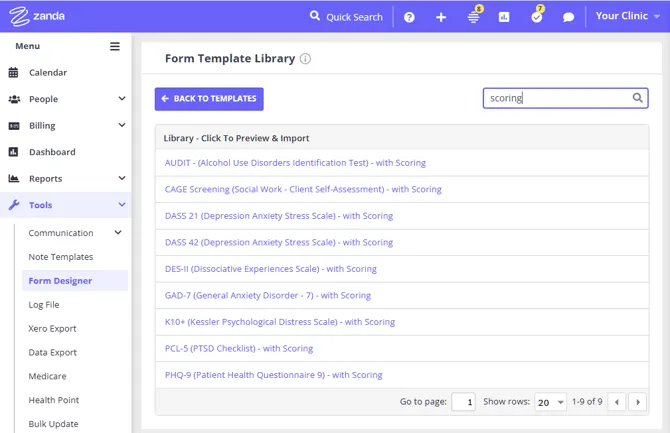
Below is the current list of scored forms available in the Template Library :
-
AUDIT - (Alcohol Use Disorders Identification Test) - with Scoring: A screening tool used to identify risky or harmful alcohol consumption patterns. It helps practitioners assess the likelihood of alcohol dependence and guide further support.
-
CAGE Screening (Social Work - Client Self-Assessment) - with Scoring: A brief four-question screening designed to detect potential alcohol misuse. It is commonly used as a quick self-assessment in social work and clinical settings.
-
DASS 21 (Depression Anxiety Stress Scale) - with Scoring (Raw Score Interpretation): A short-form questionnaire measuring levels of depression, anxiety, and stress. This version provides automatic raw score calculations and raw score interpretation ranges based on standard DASS-21 scoring for a quick snapshot of a client’s emotional state over the past week.
-
DASS 21 (Depression Anxiety Stress Scale) - with Scoring (DASS 42 Equivalent Interpretation): A short-form questionnaire measuring levels of depression, anxiety, and stress. This version automatically doubles the DASS-21 scores and applies interpretation ranges aligned with the full DASS-42 scale, providing a quick snapshot of a client’s emotional state over the past week using DASS-42 equivalent scoring.
-
DASS 42 (Depression Anxiety Stress Scale) - with Scoring: A more detailed version of the DASS 21, offering deeper insight into depression, anxiety, and stress symptoms. It is often used when a more comprehensive assessment is required.
-
DASS-Y (Depression Anxiety Stress Scale - Youth) - with Scoring: A youth-friendly version of the Depression Anxiety Stress Scale, designed to measure symptoms of depression, anxiety, and stress in children and adolescents. It uses simplified wording to support younger clients and provides scored results to help practitioners review emotional distress and monitor changes over time.
-
DES-II (Dissociative Experiences Scale) - with Scoring - A self-report tool used to measure dissociative experiences. It helps identify symptoms such as memory gaps, depersonalization, or derealization.
-
GAD-7 (General Anxiety Disorder - 7) - with Scoring: A widely used screening tool for generalized anxiety disorder. It helps assess the severity of anxiety symptoms and monitor changes over time.
-
K10+ (Kessler Psychological Distress Scale) - with Scoring: A measure of general psychological distress based on anxiety and depressive symptoms. It is often used in primary care and mental health settings for initial screening.
-
PCL-5 (PTSD Checklist) - with Scoring: A standardized self-report rating scale for assessing symptoms of post-traumatic stress disorder (PTSD). It supports both screening and symptom monitoring.
-
PHQ-9 (Patient Health Questionnaire 9) - with Scoring: A commonly used tool for screening, diagnosing, and measuring the severity of depression. It also helps track changes in symptoms over time.
-
RCADS 25 (Revised Child Anxiety and Depression Scale) - Caregiver Neutral Pronouns - with Scoring: A shorter caregiver-completed version of the RCADS, designed to screen for anxiety and depression symptoms in children and young people. This version uses neutral pronouns, making it suitable when more inclusive wording is preferred.
-
RCADS 25 (Revised Child Anxiety and Depression Scale) - Caregiver - with Scoring: A shorter caregiver-completed version of the RCADS, used to assess anxiety and depression symptoms in children and young people based on caregiver observations.
-
RCADS 25 (Revised Child Anxiety and Depression Scale) - Youth - with Scoring: A shorter self-report version of the RCADS, completed by the young person to assess symptoms of anxiety and depression.
-
RCADS 47 (Revised Child Anxiety and Depression Scale) - Caregiver Neutral Pronouns - with Scoring: A more detailed caregiver-completed version of the RCADS, used to assess a wider range of anxiety and depression symptoms in children and young people. This version uses neutral pronouns for more inclusive wording.
-
RCADS 47 (Revised Child Anxiety and Depression Scale) - Caregiver - with Scoring: A more detailed caregiver-completed version of the RCADS, designed to help practitioners assess anxiety and depression symptoms based on caregiver observations.
-
RCADS 47 (Revised Child Anxiety and Depression Scale) - Youth - with Scoring: A more detailed self-report version of the RCADS, completed by the young person to assess a wider range of anxiety and depression symptoms.
These templates are ready to use and can be customized further after import to suit your practice’s workflow and documentation needs.
Not every standard measure is available as a pre-built template in the Template Library. If you need a measure that isn’t listed here, you can recreate it yourself in Form Designer: add the questions as fields, then follow the steps below to enable scoring and set up score totals.
Enabling Scoring on a Form
Before you can add scores to questions, you must enable the scoring engine for the specific form template.
- Navigate to Tools > Form Designer.
- Open an existing form template or create a new one.
- In the form header, locate the Scoring section.
- Toggle Enable scoring on this form to On.
Once enabled, the form is ready for scoring configuration:
- The system prepares the form to support scoring safely in the background.
- You’ll see options to Add Assessments Score (totals) and scores interpretations for the form.
Once enabled, new configuration options will appear. You can turn this off at any time to revert the form to a standard non‑scored text form.
Adding Scores to Questions
Scoring is available for:
- Choose One Value (single choice)
- Choose Multiple Values (multiple choice)
To add scores:
- Open the form in Tools > Form Designer editor.
- Click Edit on a Choose One Value or Choose Multiple Values question or add a new one.
- Toggle Enable Scoring to On for that question.
- A Score column appears next to your options.
- Enter a numeric score (e.g. 0, 1, 2, 3) for each option.
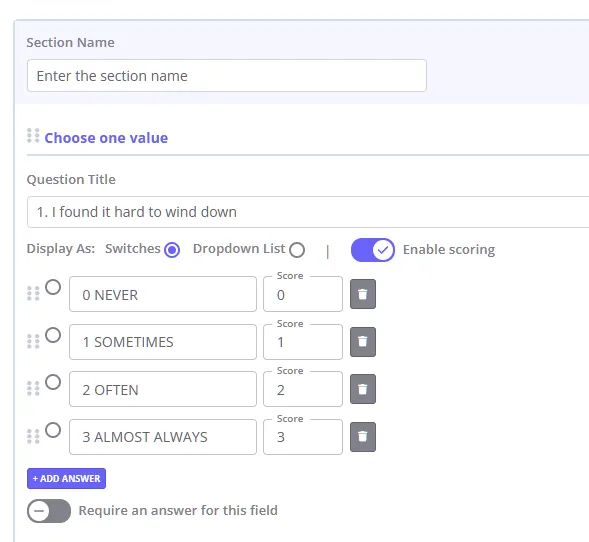
💡 Tip: If you leave Enable Scoring off for a specific question, its answers will not contribute to any calculated totals.
Creating Score Totals (Assessment Scores)
An Assessment Score defines how the system totals the points from your questions. You can create multiple totals for a single form (e.g., “Anxiety Sub-scale” and “Depression Sub-scale”).
- In the form header, under Scoring, click + Add Assessments Score
- Configure the calculation settings:
- Scored Name: Enter a label (e.g., “Total Depression Score”). This will be visible on the completed form and PDF.
- Question Selection: Choose which questions to include.
- All Scored Fields: Adds every scored question in the form.
- All scored questions in selected sections: Limits the total to specific form sections.
- Custom question selection: Allows you to pick individual questions manually.
- Scoring Method: Select the mathematical logic.
- Sum (Total): Adds all scores together.
- Median: Calculates the median value.
- Average: Calculates the mean value.
- Interpretation: numeric score interpretations for assessment scores
- Click Save Form to apply your changes.
You can:
- Reorder score calculations.
- Hide individual calculations from clients while still seeing them in the clinic.
- Duplicate a calculation if you want a similar one with small differences.
- Remove a calculation if it’s no longer needed.
Setting Up Assessment Scores Interpretations
After you set up the question selection, the scoring method, and selected the questions included in the Score, you can add interpretations for the assessment scores
Assessment scores interpretations let you attach an easy‑to‑read interpretation to a numeric score, for example:
- 0–9: Minimal (green)
- 10–19: Mild (yellow)
- 20–29: Moderate (orange)
- 30–40: Severe (red)
They are:
- Fully configurable per Assessment Score.
- Stored in form templates and included in:
- Template export / import
- Template duplication
- Displayed wherever client assessment scores appear (in client profiles in Zanda, print, PDF, and, when enabled, client portal/emails).
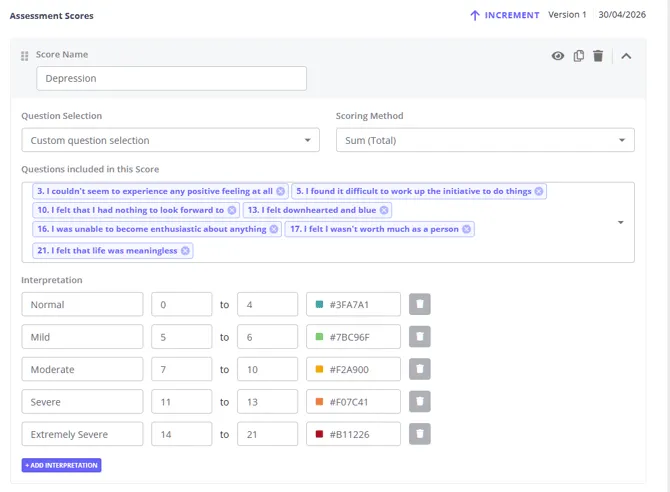
To set up interpretations within the Assessment Score settings:
- Find the Interpretation section.
- Click + Add interpretations to create a row.
- For each interpretation, fill in:
- Name – The label that will display alongside the score, e.g. “Minimal”, “Mild”, “Moderate”, “Severe”.
- Range (From – To) – The numeric score range that maps to this interpretation.
- Color – select the colour that will be used to display the interpretation name.
- Repeat until you’ve defined all the interpretation you need.
- Click the trash bin icon to delete an interpretation
Important behaviour:
- The name, range, color, and the order of interpretations are all preserved:
- When the template is exported.
- When it is imported into another account.
- When it is re‑imported into the same account.
- Interpretations configuration on one template does not affect other templates.
To ensure correct behaviour:
- Each score should fall into exactly one interpretation range.
- Avoid overlapping ranges (e.g. “0–10” and “10–20”) unless the system defines its how boundaries work.
- Cover the full range you care about, or intentionally leave some scores without any interpretation.
Only one interpretation will be applied to a given score: the one whose range the score falls into.
Save the form template. Your assessment scores and interpretations are now active. They will move with the template when you:
- Export/import it.
- Duplicate it as another template.
Where Interpretations Are Displayed
In client records:
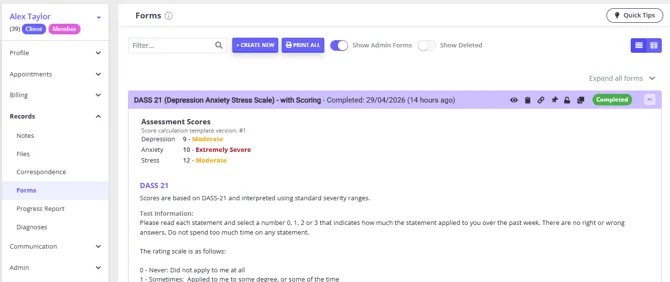
When you open a completed scored form in a client profile > Records > Forms:
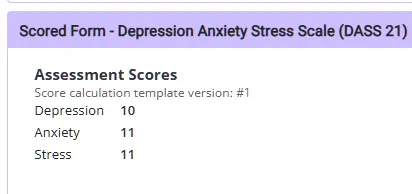
- The numeric assessment score is shown.
- The matching interpretation name (based on the score range) is displayed alongside the score.
- The interpretation name is bold and appears in the configured colour.
- Only one interpretation is shown – the one that matches the score’s range.
If no assessment interpretations are configured for that Assessment Score:
- Only the numeric score is shown.
- No interpretation label and no colour indicator appear.
When you print a completed scored form (with Display Scores in Portal/Emails turned on):
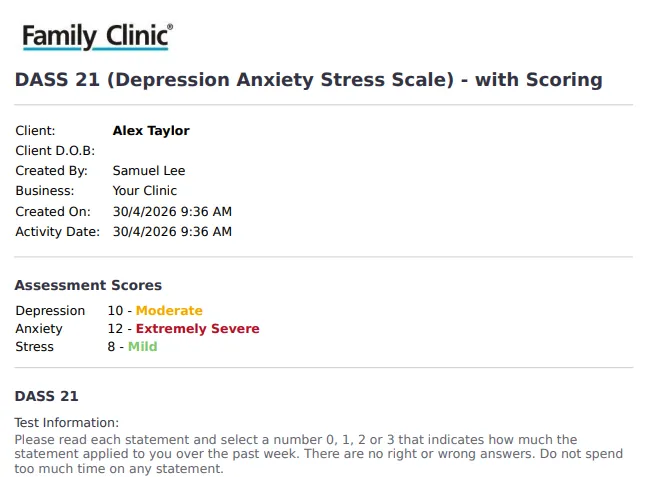
- The assessment score is included in the print output.
- The matching interpretation name is shown next to the score.
- The interpretation colour is rendered in a print‑safe way (aligned with other print styling).
When you export a completed scored form as a PDF (with Display Scores in Portal/Emails turned on):
- The assessment score is included in the PDF.
- The matching interpretation name is displayed next to the score.
- The interpretation colour is rendered consistently with other PDF elements.
If Display Scores in Portal/Emails is turned off, printed and PDF copies of the form don’t include the scores or interpretations, even when a member of your team prints or downloads them. The scores are still shown on screen when you open the completed form in the client profile.
Client Portal & Emails
Assessment interpretation is shown to clients only when the “Display Scores in Portal/Emails” toggle is ON.
- If Display Scores in Portal/Emails is ON:
- The client sees the score, and the matching interpretation (name + colour) where scores are shown in the client portal/emails.
- If the toggle is OFF:
- Neither the score nor the interpretation will be shown to the client in portal/emails.
Controlling What Clients Can See
You can choose whether clients can see their own scores with interpretations in the Client Portal or on PDFs. This is useful for keeping clinical interpretations private when necessary.
In the form’s Scoring settings:
- Turn Display Scores in Portal/Emails ON to show scores to clients:
- A Scored Totals section will appear on PDFs and printed forms.
- Visible score calculations with applicable interpretations will appear in the Client Portal and any emailed PDF attachments.
- Turn this OFF if scores and interpretations should only be seen on screen by your team, when viewing the completed form in the client profile. With this setting off, the Scored Totals section is also left off every printed form and PDF, including copies your team prints or downloads.
Note: There isn’t a separate setting for printed or PDF copies. The same toggle decides what shows up everywhere.
You can also hide individual score calculations and interpretations from the client view while still using them internally.
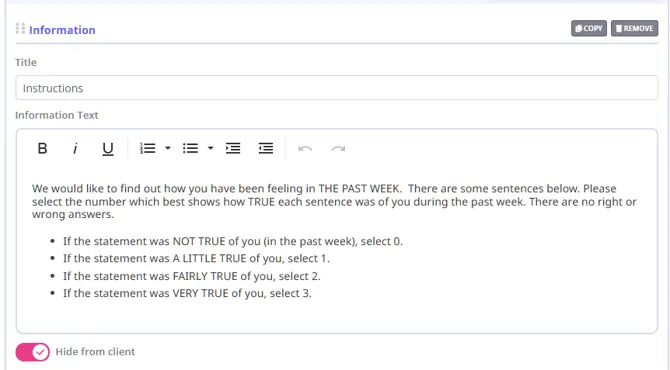
Using the Hide From Client Option on Form Fields
The Hide from client option lets you include internal notes or guidance on a form that only your team can see when viewing completed forms in the client profile. These fields are hidden from clients when they complete the form and are also excluded from print/PDF copies.
This can be useful for:
- Internal instructions for scoring
- Context or reminders for your team that you don’t want to share with clients
- Internal commentary that should not appear in exported or printed documents
Where you can use Hide from client
The Hide from client toggle is available on the following field types in the Form Template Designer:
- Information fields
- Multi-line Text fields
The toggle:
- Appears in the field settings when you add or edit one of these fields
- Is off by default
Note: The Hide from client option is not available on other field types.
How to enable Hide from client on a field
- Go to Tools > Form Designer and open a Form Template.
- Add a new Information or Multi-line Text field, or click an existing one to edit it.
- In the field settings, locate the Hide from client toggle.
- Turn the toggle on to hide this field from clients.
- Save the form template.
The toggle state is saved with the form template and does not affect any other field settings.
What clients see
When Hide from client is enabled on an Information or Multi-line Text field and a client opens the form to complete it:
- The hidden field’s label and content are not shown to the client.
- The field does not take up any space in the layout – the form appears continuous, with no visible gaps.
What your team sees in the client profile
When a user (such as a practitioner or admin) views the completed form in the client profile:
- The hidden field’s label and content are visible.
- The field appears in its original position within the form, so the context is preserved for your team.
This means you can safely add internal-only text while still seeing it in-line with the rest of the responses when reviewing a form in the client’s record.
Printing and PDF exports
If a form includes fields where Hide from client is enabled, and you:
- Print the form, or
- Generate/attach a PDF of the form to any communication
then:
- The hidden field’s label and content are not included in the printed or PDF output.
- The field does not leave a blank space in the document layout.
This ensures internal notes or instructions never appear in client-facing printouts or attachments.
Versioning of Scoring
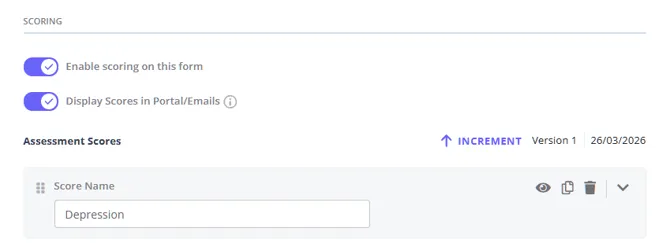
Scored Forms allow you to maintain a version number for the scoring configuration on each template.
This allows you to:
-
Update scoring rules over time (for example, add a new section or adjust score ranges).
-
See exactly which scoring version was used for each completed form.
Each client form stores the scoring version that was active when it was created. This ensures historical results remain comparable and easy to interpret, even if you later change the template or scoring rules.
To update the version number:
-
Each form starts at ‘Version 1’ when it is created or when scoring is first enabled on an existing form.
-
Click Increment to move to the next version. The version can only be incremented once until the form is saved.
-
If you increment the version by mistake, click Undo Increment to revert to the previous version.
How Scores are Calculated
Scores are calculated and interpreted automatically when:
- A client submits the form, or
- A practitioner practitioner saves it as “Completed”.
Behind the scenes:
- The system uses the scores and interpretations you assigned to each option.
- For multi-select questions, it adds the scores of all chosen options.
- It then applies the method you selected (Sum, Median, or Average) for each Score Calculation.
- If interpretations are added, the form will apply interpretations of assessment scores
- The result is saved with the completed form so you can review it later or use it in reporting.
You don’t need to do anything manually—scores are always recalculated based on the client’s final answers at the time the form is completed.
Viewing Scores on Completed Forms
In Zanda account:
When you open a completed form that uses scoring:
- A Scored Totals section appears at the top of the form.
- You’ll see:
- The version of the scoring used.
- Each visible Score Calculation and its result (e.g. “Total Anxiety Score: 14”).
This makes it easy to see key scores at a glance without scrolling through the whole form.
In the Client Portal, emails, and PDFs
If Display Scores in Portal/Emails is turned on:
- A Scored Totals section is shown at the top when:
- The client views the PDF in the Client Portal.
- The form is printed or downloaded as a PDF.
- The completed form is sent as a PDF email attachment.
Only the Score Calculations you have set as visible will appear in these client-facing outputs.
Client Progress Reports
You can also view a client’s scored assessment results over time in one clear, structured report. Client Progress Reports bring together visual trends and detailed results, making it easier to track changes, compare scores (including subscales), and review completed forms—all without opening each form individually.
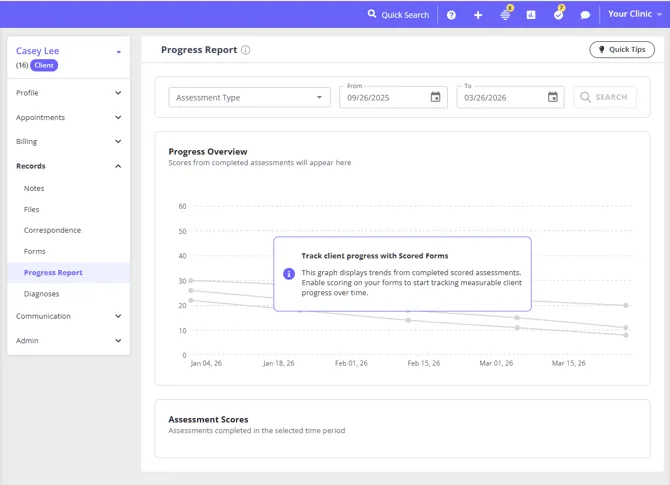
You can find each client’s progress report in their profile > Records > Progress Report.
With a combined graph and table view, you get a quick overview of progress alongside the ability to explore the full context behind each result, helping you stay informed and make more confident clinical decisions.
Learn more about client progress reports in a detailed article here.
Exporting and Importing Scored Form Templates Between Zanda Accounts
When you export a custom form template that uses scoring:
- All score values, Score Calculations, and display settings are included.
When another Zanda account imports that template:
- The scoring configuration is preserved.
- Scores and calculations are ready to use without extra setup.
This is useful if you maintain standard assessment templates across multiple Zanda accounts.
Frequently Asked Questions
Why is a completed DASS or other scored form not showing a score?
If a completed scored form is not showing a score, first check that the form was completed after scoring was configured and that the score calculation has results to display.
- Open the completed form from Client Profile > Records > Forms and confirm the form is completed, not still in draft.
- Go to Tools > Form Designer and open the form template.
- In the Scoring section, confirm Enable scoring on this form is turned on.
- Check the relevant Choose One Value or Choose Multiple Values questions and confirm Enable Scoring is turned on for those questions, with numeric score values entered for the answer options.
- In Assessment Scores, confirm the template has at least one visible assessment score and that it includes the questions or sections you expect to score. Only visible assessment scores appear in the completed form’s Assessment Scores area and in progress reporting.
- If the score is missing from the Client Portal, a printed form, a PDF, or an email attachment, including a copy you printed yourself, turn on Display Scores in Portal/Emails in the template’s Scoring settings.
Scores are calculated when the client submits the form or when a practitioner saves the form as completed. If scoring is added or changed after a form was already completed, send or complete a new form using the updated scoring setup.
Can I hide scores from clients in the Client Portal but still include them when I print or download the form?
Keep Display Scores in Portal/Emails turned off, and view each score and its interpretation on screen instead, in Client Profile > Records > Forms, or track results over time in the client’s Client Progress Report. If you need a printed or PDF record with the scores, type the key scores into a session note or letter, which you can print or export as a PDF.
Display Scores in Portal/Emails controls the Client Portal, emailed PDF attachments, and printed or downloaded PDFs together, so there’s no way to turn scores off for clients while keeping them on your own printed or PDF copies.
If separate settings for client-facing and team copies would help your practice, submit the idea through the Customer Ideas Portal.
Is Scored Forms (calculated fields) included in my plan, or is it a paid add-on?
Scored Forms is included with every Zanda plan at no extra cost. It is not a separate paid add-on, so there is nothing to purchase or activate on your subscription. If you can access Tools > Form Designer, you already have access. Turn on scoring for a form using the steps in Enabling Scoring on a Form, above.
Can one question send different answer options into different Score Calculations?
Set up a separate scored question for each total instead of sharing one question, then use Custom question selection (see Creating Score Totals above) when creating each Assessment Score to include only the question that should count toward it. Each answer option has a single score value that applies the same way in every Assessment Score it’s part of, so one question can’t route different options into different totals.
Can I change or backdate a scored form’s completion date to when the assessment was actually done?
No. The date shown for a completed scored form (including the Date column in the Assessment Scores table and the Progress Overview graph in Client Progress Reports) is the date and time the form was marked Completed in Zanda, whether that happened by the client submitting it or by a practitioner using Save & Complete. Zanda sets this date automatically, and there’s no way to edit it or set it to an earlier date. Re-opening, editing, and re-completing the form doesn’t change it, even if you also enter a different date somewhere inside the form’s own fields.
This matters if you’re entering a client’s paper-based assessment into Zanda after the fact, for example a DASS-21 the client completed on paper during an earlier session. The progress report will show the date you completed the online form in Zanda, not the date the client originally took it on paper.
If you need the original assessment date on record, add it to a session note dated to that day (use Choose a Date in the note’s Date field) so the context is preserved. The progress report and the form’s own completion date will still reflect when it was entered into Zanda.