
Caution:
Privacy Note: Enabling Allow Search Engine Indexing setting makes your Client Portal address and public information visible in web search results.
How to Enable Search Indexing
Follow these steps to allow search engines to crawl and list your portal:
- Navigate to User Menu > Account Setup > Client Portal > Access and Settings.
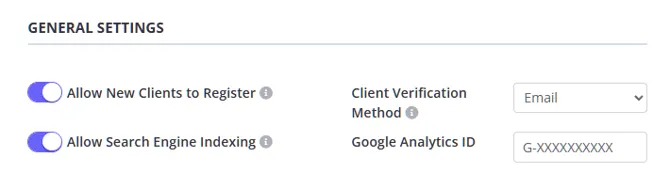
- Scroll down to the General Settings section.
- Locate the Allow Search Engine Indexing switch.
- Toggle the switch to On.
- Click Save.
Important Considerations
- Allow for time to update: Changing this setting does not have an immediate effect. It may take several weeks for search engines to crawl your site and update their indexes.
- How it works: This setting controls the “robots” meta tag on your portal. When disabled (default), it tells search engines not to index the page. When enabled, it allows standard indexing.