
Before we get started, let’s quickly define the two terms:
Referrer: A referrer is generally a doctor or another health practitioner that has referred a client to your practice or business for treatment.
Referral: A referral is the record of that client being referred to you. These commonly include start and end dates.
Now that that’s clear, let’s see how you can add and edit referrers and referrals in your Zanda account.
Note: If you’re wanting to submit Medicare and DVA claims through Zanda then you’ll be using this system to record referrals for claiming.
Adding a New Referrer
Here’s how you can create a new referrer profile:
-
Navigate to People > Add using the left-hand menu on Zanda. An Add New popup box will appear.
-
Toggle the Referrer switch. This will add your new contact to your list of referrers.
-
Add their details such as Name, Business or Practice Name and Mobile Number. Also set the System Referrer Type.
-
You can edit the existing list of referrer types or create your own in Account Settings > Clients > Referrer Types (click the Settings cog, top right).
-
Assigning a referrer type to a referrer profile will allow you to filter lists of referrer profiles to send a bulk communication message or bulk update a group of referrer profiles.
-
-
The default dropdown list of Medicare (AU) referrer types is used for the internal reference only and will not be included in any other functionality in Zanda, such as processing Medicare AU and DVA AU claims.
-
After the form is complete, click Next. You will be taken to the new referrer’s profile page.
-
Complete the profile by adding as much relevant information as you can (you can always come back and add or edit this information later if need be).
-
When done, click on the Save Changes button at the bottom-right corner of your screen.
Referrer Profile in Detail
The Referrer Profile is organized in a way similar to the Client Profile. It consists of four sections: Profile, Records, Communication and Admin. Here is a brief overview of each of these sections:
The Profile section includes 3 tabs: Details, Tasks and Referrals Made:
- The Details tab allows you to enter all the personal and business details of the referrer.
- Use the Tasks tab to set up individual tasks for the referrer and assign them to the responsible users.
- The Referrals Made tab contains the list of all referrals made by this referrer in their lifetime in your Zanda account.
The Records section includes Files and Correspondence tabs.
- The Files tab allows you to upload and organise all the files that were sent to you by this referrer.
- The Correspondence tab will permanently store all your communication with the referrer (emails, SMS and letters), with a few exceptions, as explained here.
The Communication section is where you can
- see all Communication Activity for this referrer within the past 12 months and
- manually generate and send a new SMS, email or letter with the help of Zanda Communication feature
The Admin section allows you to manage your Referrer Profiles and keep their admin records:
- On the Manage tab you will be able to add new Roles to the profile, reset the Client Portal password if this person is also a client of yours, manage their subscription to marketing communication, make a record of the personal data consent. The following manage options will help you to:
Copy to new - if you need to add more referrers from the same organisation, fill out the contact details for the first one, and then copy this profile to new to have the contact details and address added automatically;
Merge Profile - if you created a duplicate profile for the same referrer, you can merge the duplicate into the profile you want to keep. Zanda moves the duplicate profile’s records and referrals to the kept profile, then makes the duplicate profile inactive;
Archive - if you no longer work with this referrer, archive their profile. The data is still saved in the background, but the referrer no longer appears when you search for someone, including when you are adding a referral to a client. See Archiving or deleting a referrer you no longer work with below;
Delete - please beware that when a profile is deleted, you are given a 48-hour grace period within which you can restore it. After that time the profile and all its data are permanently deleted and cannot be recovered. See Archiving or deleting a referrer you no longer work with below.
-
The Admin Notes tab will help you manage notes made by your admin team. This tab will not be restricted for access by authorised users only.
-
The Admin Files tab is used to upload and organise non-confidential files shared with your practice
-
The Admin Forms tab is used to send and store online admin forms that help collect information from your referrers
Archiving or deleting a referrer you no longer work with
When a referrer stops sending you clients, or a relationship ends, you do not have to leave their profile sitting in your lists. You can archive them, which hides them but keeps everything, or delete them, which removes them and their data permanently.
Archiving is the recommended option in almost every case. It is reversible, and nothing is lost. Only delete a referrer when you are certain you will never need their records again.
Finding the referrers who have gone quiet
If you are not sure who to archive, start with the report:
- Click Reports and search for Inactive Referrers.
- Enter the date range to report on.
- Click Run Report.
This lists the referrers who have not referred a client to you within that period, along with their practice name, address, phone, the date of their last referral and the last client they referred. See Inactive Referrers Reports below.
Who can archive and who can delete
Archiving and unarchiving a referrer does not need the Setup and Configure Zanda permission, so you can let a team member tidy up your referrer list without giving them account-wide administrative access.
Delete and Unarchive/Restore are only available to the Master User and to users with the Setup and Configure Zanda permission. A user without it will not see those two buttons on the profile.
How to archive a referrer
- Open the referrer’s profile.
- Navigate to Admin > Manage.
- Click Archive and confirm when prompted.
What changes once a referrer is archived:
- They no longer appear when you search for a referrer, including when you are adding a referral to a client’s profile, so nobody can attach a new referral to them by mistake.
- They are hidden from your People > Search list (with the Referrers profile type selected), which shows non-archived profiles by default.
- Nothing is deleted. Existing referrals, invoices and correspondence are untouched, and the referrer still shows on every record already linked to them.
- They still appear in the referrer reports, including Inactive Referrers and Recent Referrals. Archiving hides a referrer from searches and lists, not from your reporting.
How to find an archived referrer again
- Go to People > Search (with the Referrers profile type selected).
- Switch to Advanced search and open the filters.
- Set the Archived filter to Archived Clients Only and search.
To bring them back, open the profile, go to Admin > Manage and click Unarchive. They reappear in searches straight away, including when you are adding a referral.
How to delete a referrer
Before you delete, check whether the referrer has invoices or payments linked to them, and export anything you may need for your own records. Deleting removes that data permanently and will affect your financial history.
- Open the referrer’s profile.
- Navigate to Admin > Manage.
- Click Delete.
- Read the warning. It tells you how many invoices and payments are linked to the profile and would be permanently deleted, and asks you to type DELETE to confirm.
Zanda archives the profile immediately and schedules it for permanent deletion 48 hours later. Nothing is removed during those 48 hours.
How to cancel a scheduled deletion
If you change your mind within the 48 hours:
- Find the profile using the advanced search filters described above, this time setting the Archived filter to Flagged for Deletion.
- Go to Admin > Manage.
- Click Unarchive/Restore. The scheduled deletion is cancelled and the profile is restored.
After 48 hours the profile and all of its data are permanently deleted and cannot be recovered.
Related: for how archiving and deletion work across every profile type, see Archiving, Deleting, Unarchiving and Restoring Clients.
Adding a New Referral to a Client’s Profile
Here’s how to list a client’s referral on their profile:
-
Open the client’s profile page. (Use the quick search bar to quickly find the client’s profile)
-
Navigate to Profile > Referrals and click on +Add Referral.
-
Complete the form. Start typing the referrer’s name in the Referrer field; Zanda searches as you type and shows No matching referrers if nothing comes up. To add a referrer you haven’t recorded yet, select + Add new referrer at the bottom of the list and follow the instructions listed in the section above.
-
After selecting the name, add the other details and press the Save button. Your new referral will appear in the Referral List in the client’s profile.
When you open a saved referral from Profile > Referrals, the referrer’s name shows as a link: click it to open the referrer’s profile. To pick a different referrer, click Change referrer next to the name and search again.
You can also attach the referral document itself to the File(s) field on this form, instead of uploading it separately to the client’s Records > Files. For a file that’s already in Records > Files, see Attaching files to a referral below.
You do not need to set a Referrer up as a Contact to communicate with them from a client’s Communication tab. Once a Referrer has been linked to a client profile via Profile → Referrals, that relationship is automatically connected to the client. From there, when you are sending communications from the client profile, you can simplyc reate the communication from the client’s profile and select referrer email in the To or CC / BCC field and send it directly to the linked Referrer.
The Default switch is on when you add a new referral. A Default referral populates into the client’s new invoices automatically, and a client can only have one: saving a referral with Default on switches it off on the client’s other referrals. If a client has referrals for different practitioners, see My client has referrals for two different practitioners. Which one goes on their claim? in the Frequently Asked Questions below. To unlink a Referral on an individual Client’s Invoice, go to the Edit Invoice Page for the specific invoice and click on the Referral drop-down list. From there, select “None” or if you need to change referrals, select the referral that you would like to attach to the invoice, and then Save.
You can also link a referral directly to a session pack, so Zanda applies it to invoices automatically whenever that pack is used. See Linking a session pack to a referral below.
Linking a session pack to a referral
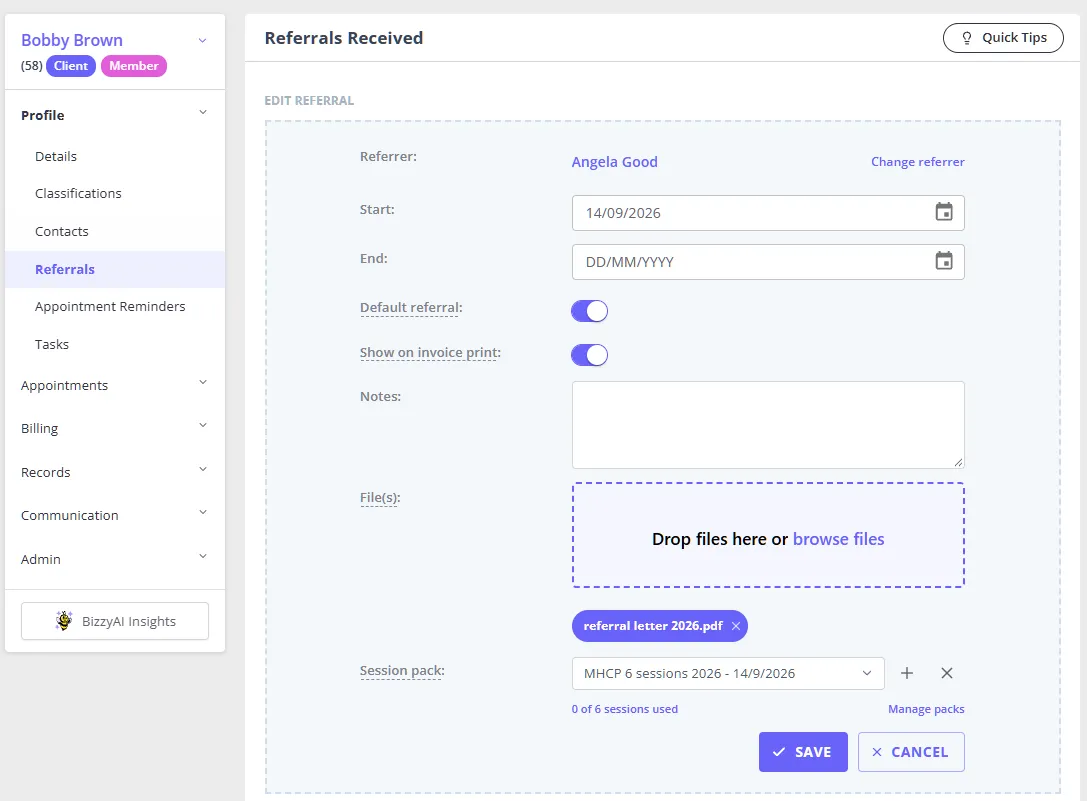
Link a referral directly to a client’s session pack, for example when their sessions are funded by a Mental Health Care Plan, and Zanda applies that referral to invoices automatically whenever the pack is used. It also shows you how many sessions, hours, or dollars have been used under that referral at a glance.
Two ways to create the link
You can create the link from either side:
- From the referral. Open the client’s profile, go to Profile > Referrals, and edit the referral. In the Session Packs section at the bottom of the form, add a row for each pack you want to link: choose one of the client’s open session packs, or select a pack template to create a brand new pack for this referral on the spot. Each row shows a running usage count, such as “1 of 6 sessions used,” that updates as soon as you make a selection. A pack already selected in one row is removed from the options in the other rows, so each pack can only be selected once.
- From the session pack. Open the client’s session pack and choose one of the client’s referrals from the Referral dropdown, which lists the referrer’s name, provider number, and referral start date.
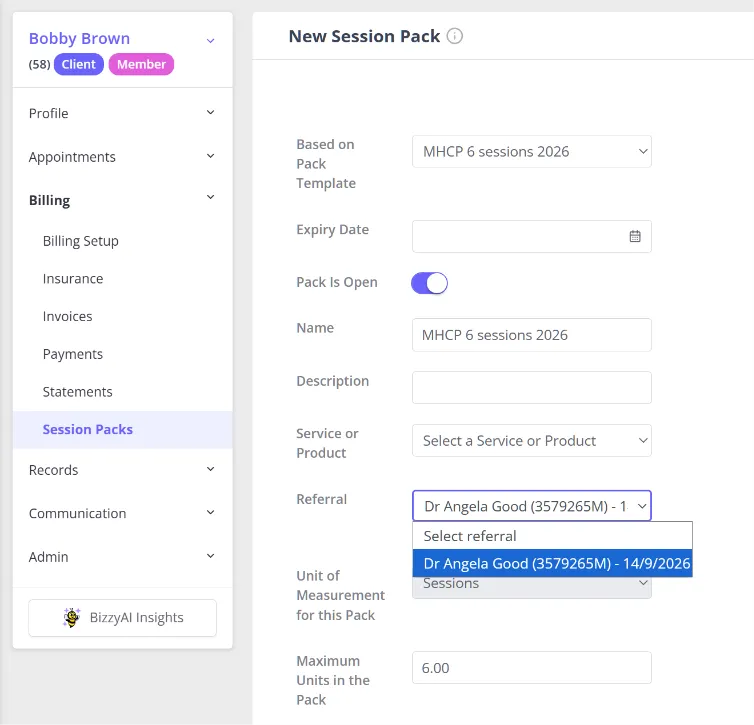
A referral can be linked to more than one session pack, but a session pack can only be linked to one referral at a time. If you try to link a pack that is already linked to a different referral, Zanda asks you to choose a different pack.
How a linked referral applies to invoices
Once a session from a linked pack is added to an invoice, Zanda sets that invoice’s referral to the pack’s linked referral, as long as the invoice’s own Date falls on or between the referral’s start and end dates.
Caution: This replaces whatever referral the invoice already had, including the client’s own Default referral. If you have manually chosen a different referral for an invoice and then add a session from a linked pack, the linked referral takes over.
Zanda checks this against the invoice’s own Date, not today’s date. A back-dated invoice can still pick up a referral that has since ended, as long as the invoice date itself falls within the referral’s period, and a future-dated invoice doesn’t pick up the referral once the invoice date falls after the referral’s end date, even if the referral is still current today. Both the start and end dates count as inside the period, and a referral with no end date stays open indefinitely. A Default referral works differently: it is checked against the dates of the appointments on the invoice, not the invoice’s own Date (see Why is the referral not showing on the client’s invoice? in the Frequently Asked Questions below).
Removing a link
To remove a link, open the referral and click the x next to the session pack you want to unlink. Unlinking a pack does not change any invoice it has already been applied to. Deleting a referral removes its link to every session pack that was linked to it.
Seeing linked packs on your Referrals list
The Referrals list (Profile > Referrals) shows a Session Packs column next to each referral, listing every linked pack and its usage, for example “MHCP (4 of 4 used).” Each pack name links to its own edit page. If several packs are linked to the same referral, they are separated by commas and, when there are too many to fit the column, shown in full in a tooltip.
Attaching files to a referral
You can attach one or more files directly to a referral, such as the referral letter or email, instead of uploading them separately to the client’s Records > Files. Open the referral and add files to the File(s) field, then save. See Uploading Files or Documents for the supported file types and the size and count limits, which are the same as any other client file upload.
A file attached to a referral also appears among the client’s Records > Files, since it’s the same underlying file. Deleting it from either place removes it from both.
Adding a file that’s already in the client’s Records > Files
To attach a document that’s already saved in the client’s Records > Files, download it and upload it again into the referral, because the File(s) field only accepts new uploads. This often comes up when a referral letter arrives and is filed before the referral itself is recorded. To attach it to the referral:
- Go to the client’s Records > Files, find the document, and select Download from the Actions menu to save a copy to your computer.
- Go to Profile > Referrals and open the referral, or click + Add Referral.
- Drag the downloaded file from your computer onto the File(s) field, or click to browse to it, then save the referral.
This uploads a new copy, so the client’s Records > Files will show the document twice: the original and the copy attached to the referral. If you only want to keep one, delete the original from Records > Files. The copy attached to the referral stays.
Tip: If you know a referral is coming, you can save the letter straight into the referral’s File(s) field when you create the referral, rather than uploading it to Records > Files first. It still appears in the client’s Records > Files automatically, with no second copy.
Deleting a referral also deletes its attached files from the client’s Records > Files. If a referral has files attached, only a user who can open the client’s file uploads can delete it.
The Referrals list (Profile > Referrals) shows a Files column next to each referral, listing every attached file by name. Whether a file name opens the file, or just shows as plain text, depends on your Access all Client File Uploads permission: without it, you can still see that a file is attached, but can only open or delete it for your own assigned clients.
How a Referral Reaches You From an Outside Professional
Referrals from GPs, specialists, and organisations arrive the way they always have—by email, letter, fax, or a phone call—and you record them in Zanda. Referring professionals do not log in to your Zanda account, so there is no queue of incoming referrals waiting for you inside Zanda. Here is the workflow end to end:
- The referral arrives from the referring professional, usually as an email or a letter with the client’s details attached.
- Create the client if they are new: People > Add, leave the Client toggle on, and enter their details.
- Create the referrer if this is the first time you have heard from them—see Adding a New Referrer above.
- Record the referral on the client’s profile under Profile > Referrals > +Add Referral, selecting the referrer and entering the referral date and referral period. See Adding a New Referral to a Client’s Profile above.
- Store the referral document by attaching the letter or email to the File(s) field on the referral itself (see Attaching files to a referral above), or to the referrer’s Records > Files tab if it relates to the referrer rather than one client.
- Reply to the referrer from the client’s Communication section—once a referrer is linked to a client through Profile > Referrals, you can select their email address in the To or CC field. See Sending Letters to Referrers.
Collecting referral details in a structured form. If you would rather your referrers send you information in a set format than write a free-text email, create an admin form in Tools > Form Designer and send it to the referrer from their profile’s Admin > Admin Forms tab. Each form you send is generated against that referrer’s profile, so create the referrer profile first—there is no single open link you can publish for any professional to fill in.
If the referring organisation is also paying, see When the Referrer or a Funding Body Pays for the Client’s Sessions below.
Referring a client out to another practitioner
Referrers and referrals in Zanda record the professionals who send clients to you. When you are the one referring a client on, for example to a specialist, a GP, or another allied health practitioner, add that practitioner as a Contact on the client’s profile rather than as a referrer. A referral record always means “this person referred the client to us,” so recording the person you are referring to as a referral would count them as one of your referrers in your referral reports.
Here’s how to set it up and send the referral letter:
- Open the client’s profile and go to Profile > Contacts.
- Click Add New Contact, then click Create New Profile and enter the practitioner’s name and email address. If they are already in Zanda (for example, they also refer clients to you), search for their existing profile instead. A referrer needs the Contact role turned on first, under Admin > Manage on their profile. See Adding Client Contacts Manually.
- Choose a relationship for the contact. You can add your own relationship types, such as “Specialist,” in Custom Lists. Leave the booking, reminder, and automation options off unless you want this practitioner to receive the client’s appointment reminders and other automated messages.
- Click Save.
- Go to the client’s Communication > New Letter, choose your referral letter template, and edit the letter as needed.
- Click Send as Attachment and select the practitioner in the To field. They appear under Contacts in the list. Add the client in CC if you want them to receive a copy.
The letter is saved to the client’s Records > Correspondence, so you have a record of the referral you sent. To send it through a secure messaging service instead of email, see Sending Letters Securely.
Note: One profile can hold both the Referrer and Contact roles. If a specialist refers clients to you and you also refer clients to them, keep a single profile with both roles turned on rather than creating a second one.
HealthLink and Other Secure Messaging Services
Keep using your secure messaging provider to send and receive, and record the referral in Zanda alongside it. Zanda does not connect to HealthLink, Medical-Objects, Argus, ReferralNet, or any other secure messaging or electronic referral network, so a referral sent through one of those arrives in the mailbox or provider software you use with that service rather than on a client’s profile. Zanda doesn’t create a client or a referral from an incoming message automatically. (The Integrations area on a client’s profile is used for Physitrack.)
Here is how each part of the workflow works in practice:
- Receiving a referral. Open the referral in your secure messaging provider as you normally would, then record it in Zanda by following How a Referral Reaches You From an Outside Professional above.
- Writing back to the referring GP. Once the referrer is linked to the client through Profile > Referrals, write to them from the client’s Communication > New Letter area and select their email address in the To or CC field.
- Sending a letter through a secure channel. Save the letter, export it to Microsoft Word, and send it from Word using your secure messaging provider’s own plugin. This is a Microsoft Word workflow rather than a connection between your Zanda account and the network. See Sending Letters Securely. The Medical-Objects plugin for Word works this way too: it sends your letters out, but it doesn’t bring incoming referrals into Zanda.
- Forms. Online forms and admin forms reach clients by email or SMS, or through the Client Portal. To collect information from a referrer in a set format, send them an admin form from their profile’s Admin > Admin Forms tab.
When the Referrer or a Funding Body Pays for the Client’s Sessions
Sometimes the organisation that refers a client (for example a university referring student clients, an employer, or an insurer) is also the one paying for the sessions.
Referral vs. payer: don’t confuse the two
A Referral records who referred the client to you - their doctor or another health practitioner. It isn’t a way to record who pays for the client’s care.
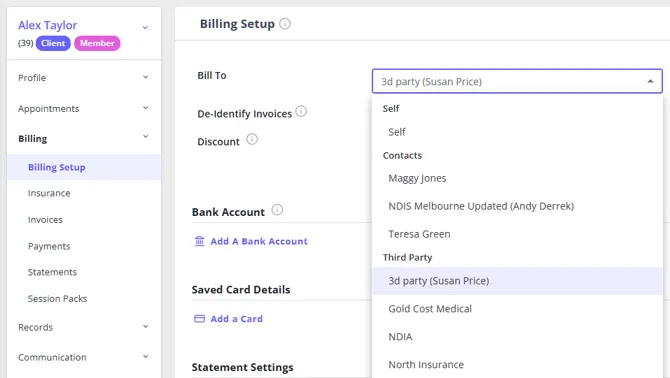
If a client’s care is funded by a compensation scheme, government agency, or other third party (for example, WorkCover), don’t add them as a Referral. Instead, set them up as a Third Party profile and select them as the client’s Bill To payer in Client Profile > Billing > Billing Setup, so invoices route to them directly. See Understanding Third Party Profiles for the full setup.
These two are independent, so you can use both for the same client: record the referring doctor as a Referral, and separately set the compensation body or agency as the Third Party Bill To payer.
To set up any of these payers as the client’s Bill To:
- Create the payer as a Third Party profile. Go to People > Add and toggle the Third Party switch.
- On the client’s profile, go to Billing > Billing Setup and set the Bill To field to that Third Party. From then on the client’s invoices are addressed to, and are the responsibility of, the payer.
Stopping unpaid-invoice reminders from reaching the referred client. Unpaid-invoice reminders from an invoicing automation are sent to whoever the invoice is payable by. Once Bill To points at the Third Party, those reminders follow the invoice to the payer and no longer reach the client. If instead you want to exclude a group of referred clients from a particular reminder automation, you can scope the automation with Client Type or Client Classification conditions—see Setting Up an Invoicing Automation.
Being paid by bank transfer instead of card. Zanda does not let you force or switch off a particular payment method (such as disabling card or Stripe) for one referrer or one client type. What you can do is offer bank transfer as an option: add Bank Transfer as a manual payment method under Account Settings > Payments > Payment Methods (click the Settings cog, top right), give the payer your bank details, and record the payment against the invoice once it arrives. See Managing Payment Methods.
When the client becomes private and the referrer stops paying. Go back to the client’s Billing > Billing Setup and change Bill To back to the client. A confirmation modal appears so you can apply the change to all future-dated invoices, so new invoices bill the client directly from that point on while past invoices stay with the payer.
See also: Invoicing to a Third Party and Understanding Third Party Profiles.
How to Get Reports on Referrers and Referrals
There are three types of reports you can get on your referrals:
- Recent Referrals: This report generates a list of clients referred to your clinic in a specific time period.
- Expired or Soon-To-Be Expired Referrals: This report generates a list of referrals whose referral period is expiring or soon will be in a particular time period.
- Inactive Referrals: This report generates a list of referrers who have not referred a new client within your chosen time period.
Recent Referrals
Here’s how you can generate a list of recent referrals:
-
Click Reports and search for Recent Referrals.
-
Enter the date range in which you’d like to view your recent referrals.
-
Click Run Report.
This will generate a report showcasing a list of clients referred to you within your chosen period, along with information such as:
- Client Name
- Referrer Name
- Referred On
- Address
- Billed
… and more.
Referrals Expiry Reports
Here’s how you can generate a list of expired or soon-to-be expired referrals:
-
Click Reports and search for Referral Expiry.
-
Enter the date range in which you’d like to view your expired or soon-to-be expired referrals.
-
Click Run Report.
This will generate a report showcasing a list of clients expiring/expired within your chosen period, along with information such as:
- Client Name
- Primary Practitioner
- Referred By
- Expires On
Inactive Referrers Reports
Here’s how you can generate a list of inactive referrers:
-
Click Reports and search for Inactive Referrers.
-
Enter the date range to report on.
-
Click Run Report.
This will generate a report showcasing a list of inactive referrers within your chosen period, along with information such as:
- Their Practice Name
- Address
- Phone
- Last Referral Date
- Last Client
… and more.
Frequently Asked Questions
Can Zanda send a client an automatic SMS when their referral expires?
Not on its own, but you can do it in a few clicks: run the Referral Expiry report to see whose referrals are about to run out, then message that list.
- Click Reports and search for Referral Expiry (see Referrals Expiry Reports above for the full steps and columns). The date range opens on today through one month ahead, so by default you are looking at the referrals that are about to run out. Change the dates to look further ahead, or back over referrals that have already expired, and use the practitioner filter to narrow the list. The report covers active referrals on active, non-archived clients.
- Click a client’s name in the report to open their profile.
- Message those clients. For a short list, send from the client’s Communication section, or add a Client Task with a due date and a linked communication template so the follow-up sits on your task list. For a longer list, use Tools > Communication > Bulk Send and select the clients from your report by hand, as the recipient list is built through the client advanced search. See Sending Bulk Communications.
Add the {ReferralEndDate} merge field to your SMS or email template so the message states when the referral runs out. It fills from the client’s active referral, using the one marked Default where there is one and otherwise the one with the most recent start date—so for a client with more than one active referral, check which date the template picks up. It comes through blank when the client has no active referral. See Available Merge Fields for Communication Templates.
There is no way to have this happen automatically. A referral reaching its end date is not one of Zanda’s automation triggers, and the automatic client tasks cover only a client’s birthday, a recurring appointment series that is about to finish, and session packs. If an automatic referral reminder would help your practice, you can suggest it.
Can my referrers log in to Zanda to send referrals and track their clients?
No. Zanda has one portal—the Client Portal —and it is for your clients and their authorised contacts. There is no separate referrer portal, so referring professionals cannot log in to submit a referral, follow a client’s progress, or message your practice through Zanda.
What you can do instead:
- Record every referral yourself as it comes in, so your reporting stays complete—see How a Referral Reaches You From an Outside Professional above.
- Send a referrer an admin form from their profile’s Admin > Admin Forms tab when you want their information in a consistent format.
- Keep the referrer updated with emails and letters from the client’s Communication section, which are stored on the referrer’s Correspondence tab.
- Report on referrer activity with the Recent Referrals, Referral Expiry, and Inactive Referrers reports—see How to Get Reports on Referrers and Referrals above.
Can I manage two concurrent cases for the same client in one profile?
Yes—for most of what makes a case separate, you can keep two or more cases running side by side in a single client profile, without duplicating the client.
- Separate referring providers: Add a referral for each case under Profile > Referrals > +Add Referral, so the client has more than one active referral at the same time—one per case. See Adding a New Referral to a Client’s Profile above.
- Separate billing, claim numbers, and insurers: On each invoice, use the Referral drop-down on the Edit Invoice page to attach that invoice to the case it belongs to. The invoice then carries that case’s referring provider onto its claim, and each invoice keeps its own claim number and can be billed to a different insurer. Leave the Default switch off your referrals when you want to pick the case per invoice rather than have one populate automatically.
The one thing Zanda does not have is a dedicated “case” or “episode” folder that files clinical notes into separate case sections—notes sit on the client’s record and their appointments, not under a case. To keep each case’s notes easy to tell apart, use a distinct note template or a clear title for each case, so you can scan or filter them at a glance.
If you would rather keep the two cases completely separate across the whole record, a second client profile is still an option—but for separate referrers, billing, claim numbers, and insurers you do not need one.
My client has referrals for two different practitioners. Which one goes on their claim?
The referral on a Medicare or DVA claim is always the one attached to the invoice the claim is created from. Zanda doesn’t match a referral to a practitioner, service, or profession, and it doesn’t pick the most recent referral by date. So when one client has, for example, a physiotherapy referral and an exercise physiology referral, check that each invoice carries the right one before you submit the claim.
An invoice gets its referral in one of three ways:
- The client’s Default referral. It is attached automatically to each new invoice whose appointment dates fall within its referral period, whichever practitioner the appointment is with. Default is switched on when you add a referral, and saving a referral as Default switches it off on the client’s other referrals. If you add the second referral without turning Default off, that referral takes over on all new invoices, including the other practitioner’s.
- A session pack linked to the referral. When a session from the linked pack is added to an invoice, the pack’s referral replaces the invoice’s referral. See Linking a session pack to a referral above.
- Your own selection. Choose the referral from the Referral drop-down on the Edit Invoice page.
To keep two practitioners’ referrals apart:
- Add each referral under Profile > Referrals > +Add Referral.
- Choose how each invoice gets the right referral. You can do one of these:
- Turn Default off on both referrals and select the referral on each invoice from the Referral drop-down.
- Leave Default on for the referral used on most invoices, and change the referral on the other practitioner’s invoices.
- Link each referral to the session pack used for that service, so each pack brings its own referral onto the invoice.
- When you save a referral, Zanda may ask whether to link existing invoices within the referral period that aren’t linked to it yet. Yes links every one of the client’s invoices dated in that period, including the other practitioner’s. If some of those invoices belong to the other referral, choose No and set the referral on the right invoices from the Edit Invoice page.
- Before you submit a claim, open the invoice and check that the Referral drop-down shows the right referrer.
If a client ends up with more than one referral marked Default (for example, after a data import), Zanda doesn’t attach any referral automatically. When the invoice is created, a message asks you to keep only one Default referral or select a referral manually for that invoice.
Why does the Next button not work when I add a referrer?
When you add a referrer from the Add New window, Next submits the referrer form after the required fields pass validation. Check that First Name and Referrer Type are complete, and that the Email field contains a valid email address if you have entered one.
The Provider Number field, or NPI Number for US practices, is not required to move forward. If Next does not progress, check First Name, Referrer Type, and Email, then select Next again.
Can I upload a list of referrers, such as my GPs, from a spreadsheet or a PDF?
Our Data Import Team can load a list for you. Zanda has no bulk upload tool inside your account, so referrers you add yourself are created one at a time from People > Add—see Adding a New Referrer above.
If you have a long list, our Data Import Team can load it for you. Referrers and referrals are both records we can import.
- Set the list out as a table, one referrer per row, with a header on every column. Useful columns are name, practice or business name, email, business and mobile phone, fax, address, provider number, referrer type, and notes.
- Save it as Excel (XLS or XLSX), CSV, TXT, or XML. We can’t work with a PDF, Word document, or image as data, because the details can’t be read out of those formats reliably. If your list of GPs only exists as a PDF, retype it into a spreadsheet first.
- Click the Settings cog (top right) > Practice > Data Import, upload the file, and use the notes field to tell us it contains referrers.
The complimentary data import service is built around practices moving to Zanda from another system. If your account is already up and running, email [email protected] before you upload and we will confirm what we can do with your list.
Going the other way, you can download the referrers already in your account: Tools > Data Export produces a referrers CSV you can open in Excel. See Exporting Your Data.
If a self-serve bulk upload for referrers would help your practice, you can suggest it.
Why is the referral not showing on the client’s invoice?
If the referral is not showing on your client’s invoice, you can manually apply it. To do so go to the Edit Invoice Page for the specific invoice and click on the Referral drop-down list. From there, select the referral that you would like to attach to the invoice. If you choose the referral as Default, then it will be added to new invoices automatically.
A Default referral attaches to an invoice automatically when the invoice’s appointment date falls on or between the referral’s start and end dates; both the start day and the end day count as inside the period, and a referral with no end date stays open indefinitely. If the appointment date falls outside that period, the referral doesn’t attach automatically, which can show as a No Referral heading on a Medicare claim built from that invoice. If this happens, open the invoice and select the referral manually from the Referral drop-down before submitting the claim.
Where do I record a client’s nominated GP for Medicare referrals?
Record the GP as a Referrer, then link that referrer to the client from Profile > Referrals. Add the GP’s Medicare provider number to the referrer profile, then enter the referral start date and referral period on the client’s referral record.
For Medicare claims, Zanda uses the referral attached to the invoice to populate the referral details on the claim, including the referrer’s name, provider number, issue date, and referral period. Turn on the Default switch on the client’s referral record when you want that referral to populate on new invoices automatically.
How do I merge duplicate referrer profiles?
Open the duplicate referrer profile, then go to Profile > Admin > Manage and click Merge Profile. Search for the referrer profile you want to keep, select it, and review the confirmation message before completing the merge.
Zanda keeps the target profile and moves the duplicate profile’s records, referrals, roles, appointments, invoices, payments, files, statements, tasks, notes, messages, packs, waitlist entries, insurer details, and billing links to that profile. The duplicate profile is made inactive after the merge, and the merge cannot be undone.
Why is the system unable to save the referrers provider number?
If the provider number is unable to be saved, it may not be meeting the minimum character requirement. In this case, try adding a zero to the front of the provider number. This won’t affect claiming.
Can Zanda notify a practitioner before a client’s 6th or 10th appointment (for example, when a client’s Mental Health Care Plan (MHCP) is due for review?)
Run the Appointment Count report to find clients who have reached a session number, and assign the practitioner a task for the ones that need a review:
- Find clients who have hit a session number. Click Reports, search for Appointment Count, set your Start Date and End Date, and set Number of Appointments Between and And to the number you want to catch (set both to 6 to list clients on exactly 6 appointments). Use the Appointment Status filter to choose which appointments count. Pending, Confirmed, Arrived, and Completed are all selected by default, so clear Pending if you only want appointments that have gone ahead. Running this report weekly is the closest thing to a session-milestone alert.
- Put a reminder in front of the practitioner. When you book the appointment that will trigger the review, open the client’s Profile > Tasks tab, add a task, set the Due Date, and set Assigned to User to that practitioner. The task then counts toward the Tasks badge in that practitioner’s top bar from a week before it falls due.
- Watch the plan’s end date with the Referral Expiry report (click Reports and search for it), as described above, so a review is booked before the referral runs out.
- For session packs, Zanda can prompt you automatically. Click the Settings cog (top right) > Communication > Tasks and, under Automatically Generated Tasks, turn on the task for when the last appointment in a session pack is used or a pack expires. This is the one built-in prompt that responds to sessions being used up, so it helps where a plan is tracked as a pack. See Client Tasks.
Zanda’s automations and automatically generated tasks trigger on dates and events rather than on a client’s appointment number, so there is no alert that fires at the 6th or 10th session. Appointment reminders do not fill the gap either, since they go to the client about an upcoming appointment.
If you would like Zanda to alert you automatically at a set appointment number, let our support team know so we can pass it to our product team.
Can I check a client’s Mental Health Care Plan (MHCP) referral or session status directly with Medicare, from inside Zanda?
No. Zanda does not have a feature that queries Medicare directly for a client’s MHCP referral or remaining session status. If you need to confirm what a referral currently allows, for example when a client has moved from another practice and part of their referral has already been used elsewhere, check directly with Medicare or through Services Australia’s provider portal (HPOS).
Once you know the remaining session count, Zanda can help you track it:
- Record the referral on the client’s profile under Profile > Referrals > +Add Referral, see Adding a New Referral to a Client’s Profile above.
- Track only the sessions remaining at your practice with a Session Pack, setting Maximum Units to the remaining count rather than the referral’s original total. See How To Track Partially Used Ongoing Referrals and Treatment Plans with Session Packs in How Can I Fix or Delete Incorrect Session Packs?.
- Watch for a referral running out with the Referral Expiry report, see How to Get Reports on Referrers and Referrals above.
Should someone I refer a client to be set up as a referrer?
No. A referrer is someone who has referred a client to you. When you refer a client out, add the practitioner as a contact on the client’s profile and send your referral letter from Communication > New Letter. See Referring a client out to another practitioner above.