
Important: A dedicated Toll-Free Number (TFN) is required to send/receive SMS messages in the USA, Canada, Puerto Rico, Bahamas, Jamaica, Costa Rica, and Barbados. For more details, please click here.
Sending Emails or SMS to Clients
To send an email or SMS to a client from their client record follow the steps outlined below.
-
Open the client’s record through the Quick Search or the Client Mega Menu
-
In the client’s record, open the Communication section from the menu down the left-hand side of the record. It sits alongside Profile, Appointments, Billing, and Records—it is a side-menu section, not a tab across the top.
-
Select New Email or New SMS. The Communication section also contains Activity, where sent items and drafts are stored, and New Letter. From Activity, you can resend a sent or failed email without recreating it; see Resending an Email.
Tip: Cannot see the Communication section at all? It is hidden entirely, rather than greyed out, for users who do not have access to client communications, so there is nothing on screen to explain the absence. Refreshing or trying a different client will not change it. The user needs either the Access all Client Communications permission, or an Access Level of Clinical for clients they are linked to. Both are set on the individual user under Account Settings > Team > Users (click your practice name, top right). See Managing Users for the full list of which permission controls which section.
- Either select a template to send to the client or type your own message.
4a. Use the To dropdown to choose who receives the email or SMS. Zanda always selects the client first (on a shared profile, the primary member), and you can change it for each message. The list is grouped into sections, shown in this order: Client, Default Biller, Contacts, Referrers (Active), and Referrers (Inactive), with names sorted alphabetically within each section (a section with nobody in it is left off the list). A referrer counts as active if they have a referral for the client with no expiry date or one that hasn’t passed yet; otherwise they appear under Referrers (Inactive). Each entry shows the person’s relationship to the client, for example a support coordinator or a parent, so you can pick the right one. If someone doesn’t have an email address or mobile number on file, No contact details appears next to their name, and an archived contact is labelled [Archived].
- If you’re sending an email, you can add additional email addresses in the CC/BCC fields to send copies to other recipients.
- If there are other profiles linked to this client profile in your account, such as contacts, referrers, or third-party payees, their email addresses will be available in the same grouped, alphabetically sorted list described in step 4a above.
- You also have the option to manually enter an email address in the CC/BCC fields. However, for security reasons, there is a limit on the number of email addresses that can be entered manually.
- Additionally, when accessing Zanda on a mobile device, you will not be able to manually enter any extra email addresses.
- If your email includes an attachment, you will see it added below the content box. You are able to preview the attachment by clicking it.
To email a file that is already saved in a client’s profile, go to Records > Files or Admin > Admin Files and use the file’s email action. The browse or folder tools in the email editor toolbar are for reusable editor files or images, not for browsing the selected client’s uploaded files.
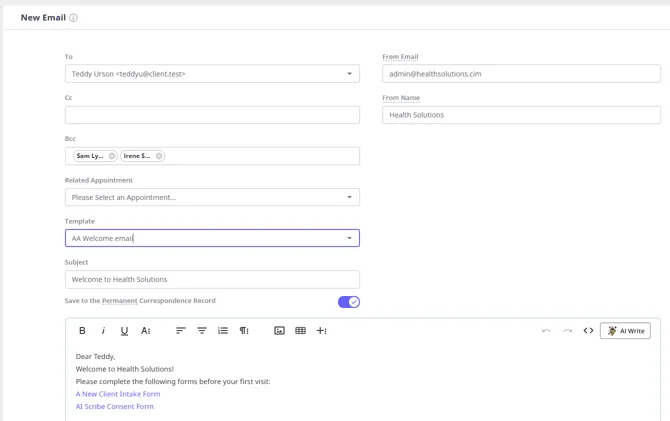
- Click Save and Send (or Save as Draft to send it later via Communication > Activity).
-
Supported file types: You can preview common attachment types including images (JPG, PNG), PDFs, audio, video, and text files before sending an email.
-
How previews work: Images and PDFs open directly in Zanda. Other file types will try to preview first and may download if your browser doesn’t support inline viewing.
Important Note:
When you select an email or SMS template that includes a form link, Zanda will automatically create a draft form at the time of selection. This occurs even if you later change the communication template or do not use it when sending. This behaviour applies when sending files, forms, notes, or invoices via email, as well as when using the standard email or SMS options within a client profile.
If you select a communication template and then change it, please ensure that any draft forms created in the process are deleted if not needed. This will help prevent incomplete form automations from being triggered unintentionally.
FAQs💡
-
What phone number will clients see when they receive an SMS from a Zanda account?
- Clients in Australia will receive an SMS from one of the numbers allocated to a Zanda account. The number will be assigned to a client profile and the client will always receive SMS from the same number.
- Clients in the USA and Canada will receive SMS from a dedicated toll-free number allocated to the Zanda account.
- If you are sending from Greece, Hong Kong, or Vanuatu your clients will receive SMS from the sender ‘ZANDAHEALTH’ instead of from a mobile number. Client responses to SMS are not supported from these regions.
- Clients in other countries will be receiving SMS from different numbers that are allocated to their Zanda account. The numbers may be different each time the clients receive a message.
-
Can clients reply directly to an individual practitioner’s mobile number?
- One-off SMS messages sent from a client profile or the Text Messaging Panel use the practice SMS routing, even when the message is associated with a practitioner.
-
Is it possible to block incoming SMS messages from clients?
- Currently, there is no option available to block incoming SMS messages from clients.
Forwarding SMS Replies from Client
To ensure you never miss a message from one of your clients, you can set up forwarding for your SMS services. This sends client SMS replies that are not attached to an appointment straight to a mobile number you choose.
-
Log in to your Zanda.
-
Click your practice name (top right) > Account Settings > Communication > Communication Options.
-
Input your mobile phone number into the field for Forwarding Text Message Replies to.
-
Click Save Changes.
Caution: Standard SMS charges will apply to the forwarded messages.
Replies to appointment reminders follow a separate, per-practitioner setting under Account Settings > Team > Practitioners > [Practitioner] > Settings (click your practice name, top right). They reach the number above only when that practitioner’s option is Forward to Text Message Reply Number. See Configuring Appointment Reminders for how reminder replies are handled and where they appear.
Generating a Letter
You can generate letters from a client’s record at any time using one of your letter templates or by typing one out on the spot. Find out how below.
To create or update reusable letter templates before selecting them from a client record, go to Tools > Communication > Templates. See Creating and Managing Email, SMS, and Letter Templates for the setup steps.
- Open the client’s record.
- Navigate to Communication > New Letter.
- If the letter is about a particular appointment, select it in Related Appointment. This fills in appointment merge fields such as {AppointmentDate}, {AppointmentStartTime} and {AppointmentPractitionerFullName}. The list shows every appointment on the client’s file, newest first. If you pick a template with appointment merge fields and haven’t selected an appointment, Zanda asks whether you want to continue, and those fields are left blank. If you change the appointment after picking a template, the letter re-merges with the new appointment’s details.
- Either select a letter template to generate or type your own letter.
- If you have AI features enabled, you can use BizzyAI: Write to draft or refine your emails and letters. Look for the AI Write button in the editor toolbar. Learn more: Using BizzyAI: Write for Client Communications.
- Select either Save as Draft or Save as Sent (you will not be able to edit the letter after this option is selected).
- When you send the letter as attachment, you will be able to select a custom email template created and saved in Tools Communication > Templates. If you do not select a custom email template, the system will use a default template for sending attachments. The ‘From’ email address in the default email template is populated from the Account Settings > Communication > Communication Options page (click your practice name, top right), the ‘Business Email Address’ field. If no email address is entered there, the system will use the email address saved in Account Settings > Practice > Business Info (click your practice name, top right).
- If desired, print the letter or generate it as either a PDF or Word Document using the buttons provided.
Important: Letters aren’t saved automatically. A letter is only saved when you click Save as Draft or Save as Sent, or when you send it with Send as Attachment. Clicking Send as Attachment opens the email window, and the letter is only saved (as sent) once you send that email. If you close the email window or leave the page before sending, the letter is not saved. For a long letter, click Save as Draft as you go. You can keep editing a draft and send it when it’s ready.
If you try to leave a letter with unsaved changes, for example by clicking a link elsewhere in Zanda, refreshing, or closing the tab, Zanda asks you to confirm before you leave. If you confirm, the unsaved text is discarded. A letter that was never saved isn’t stored anywhere, so it won’t appear in Communication > Activity or Records > Correspondence and can’t be recovered.
Tip: A letter subject can’t contain the reserved characters / \ : * ? " < > |, since the subject becomes the file name when you send the letter as an email attachment. Type one of these and Zanda shows an inline error immediately, and Save as Draft, Save as Sent, and Send as Attachment are all blocked until you remove it. If a merge field inserts the character instead, for example {ClientDOB} inserting a date like 15/03/1990, the inline error may not appear until you try to save, so you’ll need to edit the subject yourself, such as changing it to 15-03-1990. Zanda does not replace these characters for you automatically. This restriction applies to the letter subject only; it does not affect the letter content or an email subject.
All letters, emails, and SMS sent manually from a client profile are automatically saved to the Permanent Correspondence Record — no action needed. The Save to the Permanent Correspondence Record toggle applies only to communications that default to 12-month storage: bulk emails, bulk SMS, appointment reminders, and automated messages.
Important Notes:
- Where to find a sent letter: Look in the client’s Communication > Activity (last 12 months) or Records > Correspondence (permanent record). A letter you sent with Send as Attachment appears as two separate rows: the letter itself, with Letter in the Type column, and the email that carried it, with Email in the Type column. By default the email’s description starts with “Sending Letter” followed by the letter’s subject. To show only letters, hover over the Type column header, click the filter icon and choose Letter.
- Check you’ve opened the letter, not the email: A Letter entry opens the letter’s text on the page, with Print, Word and PDF buttons below it (hover over each icon to see its name). It has no From Email field and no Attachment line. If what you opened shows a From Email field or an Attachment line, you’ve opened the email, so go back and open the row whose Type is Letter. To get a PDF copy of the letter, for example after the email’s attachment has expired, click the PDF button below the letter. A sent letter opens read-only, so the PDF has the same wording you sent.
- “Attachment cannot be previewed because it is unavailable”: This error on an email entry does not mean the letter itself is gone — the letter record should be accessible separately by clicking the Letter type entry in Records > Correspondence or Communication > Activity.
- If the letter entry itself is missing from Records > Correspondence: Check whether the letter was ever saved. A letter you left before clicking Save as Draft or Save as Sent, or before sending the email from Send as Attachment, was never stored and can’t be recovered. If you did save or send the letter and it’s still missing, contact Zanda support.
- If a letter is saved against the wrong client: First check whether the letter is still a draft. Draft letters can be opened from Communication > Activity or Records > Correspondence and edited or deleted from the row actions. If the letter has already been saved as sent, the row actions change to view or print options, and the letter is kept as a correspondence record. The delete steps for Records > Files or Admin > Admin Files apply only to uploaded files, not to sent letters created in Communication > New Letter.
Previewing and Printing Individual Emails and SMS
You can preview and print individual SMS or Email records directly from the client’s profile.
-
Navigate to Communication > Activity within the client profile.
-
Locate the SMS or Email you wish to print and click to open it.
-
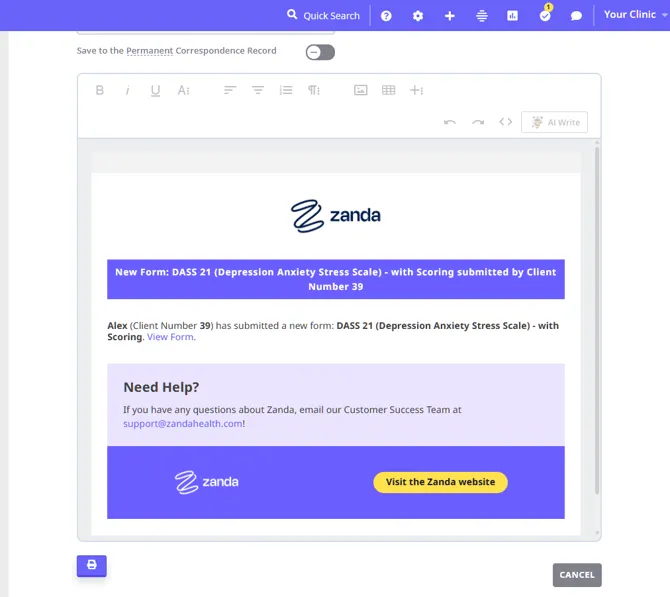
Click the Print button located directly underneath the message body. Note: If the message is in a draft state, you must save it first, as the print function requires a saved record. If you hover over the Print button on an unsaved draft, it will display a tooltip reading “Please Save before using this function”.
-
The document print preview window will open, allowing you to preview or print the selected record.
Q: Does this print the entire communication history?
No. This prints only the selected individual SMS or Email record. “Print All” correspondence capabilities are planned for a future release.
Q: Where does the “Created By” practitioner come from when I print an email from a client’s profile?
It shows the client’s primary practitioner as set in Admin > Manage within the client’s profile.Recording communication that happened outside Zanda
You can record client communication that happened outside Zanda by saving the detail in the part of the client profile that matches the type of record you need to keep.
Use this guide to choose the right place:
| Communication type | Where to record it | When to use it |
|---|---|---|
| Phone call or front-office update | Admin > Admin Notes | Use admin notes for reception, scheduling, billing, or other non-clinical communication notes. |
| Clinical discussion or session-related update | Records > Notes | Use clinical or session notes when the communication forms part of the client’s clinical record. |
| External email exchange or document | Records > Files or Admin > Admin Files | Save the email or document outside Zanda, then upload it to the relevant files area. |
| Communication sent from Zanda | Communication > Activity and, when saved to the permanent record, Records > Correspondence | Use this for emails, SMS, and letters created in Zanda. |
To record a phone call or in-person conversation:
- Open the client’s profile.
- Go to Admin > Admin Notes for an administrative note, or Records > Notes for a clinical note.
- Create a new note.
- Add the date, who was involved, the reason for the communication, and the outcome or next action.
- Save the note as a draft or complete it, depending on your practice workflow.
To keep an external email exchange in the client profile:
- Save the email from your email program as a PDF or another supported file type.
- Open the client’s profile in Zanda.
- Go to Records > Files for clinical record material, or Admin > Admin Files for administrative material.
- Upload the saved email file.
If you send the email, SMS, or letter from Zanda, check Communication > Activity first. SMS replies are also stored in Communication > Activity with the status Received.
Clients’ Correspondence Replies
- The emails you send via Zanda will be logged in each client’s profile under Communication > Activity, but your client replies won’t be. Client replies to your emails sent from your Zanda account will always go directly to your email inbox. The responses will be sent to the inbox of the email address you have recorded in the ‘From Address’ box in your email template in Tools > Communication > Templates.
- To save a client’s email reply to their Zanda record, save the email as a PDF from your email client and then upload it to the client’s Records > Files section.
The SMS you send via Zanda, and any client replies to your SMS, both will be logged in each client’s profile under Communication > Activity.
Note: The email address your invoice emails come from is the Email From Address saved on the email template your invoices use. To change it:
- Click your practice name (top right) > Account Settings > Billing > Invoices and check the Invoice Email Template field to see which template your invoices use. New accounts start with the Invoice & Statement Email template. If the field shows Select a Message Template…, choose the template you want your invoices to use and click Save.
- Go to Tools > Communication > Templates, click the gear icon next to that template, and select Edit.
- Change the address in the Email From Address box, then click Save.
Once a template is selected in the Invoice Email Template field, an Edit Template link appears below it, which opens that template directly. The link does not appear while the field shows Select a Message Template….
Each email template stores its own Email From Address. Changing the Business Email Address under Account Settings > Communication > Communication Options (click your practice name, top right) does not change the address on your invoice emails, and letters and other emails sent with a template use that template’s own Email From Address. See Creating and Managing Email, SMS and Letter Templates.
Please note: how this address is used depends on your Mail Server setting (Account Settings > Communication > Communication Options, under your practice name):
-
- Zanda’s Default Server: your emails are delivered by the Zanda mail server and are sent from a Zanda email address, with your name shown as the sender. The Email From Address you enter here is used as the reply-to address—when a client replies, the reply goes to your address—but it is not the sending address itself.
- Custom mail server (Gmail, Microsoft Outlook, or Custom SMTP): your emails are sent from your own email address on your own domain.
If you need your invoice or letter emails to be sent from an address on your practice’s own domain—for example, so a recipient or funding body can match the sender’s email domain to your organization—you will need to set up a custom mail server. See Using a Custom Mail Server.
- SMS replies are readily available in the SMS panel. You can find an article on Using the Text Messaging Panel below.
- Client SMS replies are also stored in the Client Profile > Communication > Activity with the status Received. A master user of the account and a user with permission to Setup and Configure Zanda are able to remove the content of the client’s reply SMS, for example, when it contains confidential information, by clicking on the Remove Content button under the saved reply, and saving the changes. The reply will still be saved as received, but its content will be replaced by the record entry containing the user name and the time when it was cleared.
Frequently Asked Questions
Can I send a manual SMS to someone other than the client, like a support coordinator or co-parent?
Yes. From the client’s own profile, go to Communication > New SMS and use the To dropdown to pick any linked Contact, the billing client, or a referrer. Each option shows its relationship to the client next to their name, so you can confirm you have the right person; see the To dropdown note above for how the list is grouped and sorted, and what shows when someone has no mobile number on file. There’s no separate step to go to that person’s own profile; the recipient picker is part of the same New SMS panel you already use to message the client.
Can I make emails or SMS default to the client’s referrer (or a contact) instead of the client?
No. When you open Communication > New Email or New SMS from a client’s profile, the To field always starts with the client (on a shared profile, the primary member). There’s no account or client setting that changes this to a referrer, contact, or other recipient.
You can change the recipient on each message instead. Before you send, open the To dropdown and pick the referrer under Referrers (Active) or Referrers (Inactive), or a contact, or the Default Biller. If you’ve already chosen a template, Zanda re-merges it for the new recipient so the {Recipient…} merge fields fill with their details; if you’ve already made changes to the message, Zanda asks you to confirm before it overwrites them with the re-merged version. To send a letter to a referrer, use Send as Attachment and choose the referrer in To, as described in Sending Letters to Referrers.
Marking a referral as the default on the client’s profile doesn’t change who an email goes to. It only sets which referrer’s details fill the {Referrer…} merge fields; see Available Merge Fields for Communication Templates.
Can I send an SMS to someone who isn’t in Zanda, by typing in their phone number?
No. Every SMS you send from Zanda goes to someone with a profile in your account, such as a client, a Contact, a referrer, a third party, or a practitioner. Neither the Text Messaging Panel nor Communication > New SMS has a field for typing in a phone number. You can only pick a person who’s already saved.
To message someone new, add a profile for them first:
- Click the ➕ icon in the app bar and select Client.
- In the Add New Client modal, use the toggle to choose the profile type that fits. Keep it as a client, or switch to Contact or Third Party if they aren’t someone you treat.
- Enter their name and mobile number, then save.
- Open the Text Messaging Panel, click New, search for their name, write your message, and click Send Message.
For more on creating profiles, see Adding New Clients Six Ways. For more on the messaging panel, see Using the Text Messaging Panel.
Can I make phone or voice calls to clients from Zanda?
Zanda doesn’t include a built-in phone or voice-calling feature. There’s no dialer, and the SMS number allocated to your account is a text-only line, so it can’t place or receive voice calls. Here’s how to reach clients instead:
- Live remote sessions: Use telehealth powered by Zoom to run appointments online. See Using Zoom Telehealth - FAQ and Zoom Telehealth Basic vs Pro.
- Messaging: Send SMS, emails, and letters to a client from their record via Communication > New SMS, New Email, or New Letter.
- Phone calls made outside Zanda: If you call a client on your own phone, log the call against their profile in Admin > Admin Notes (or Records > Notes for a clinical note) so it stays on record.
Can I give a client a certificate of attendance (proof of attendance for their employer)?
Yes, by writing it as a letter. Zanda doesn’t have a separate certificate of attendance feature, but a client letter does the same job, and you can save the wording as a template so it takes seconds next time.
- Open the client’s record and go to Communication > New Letter.
- In Related Appointment, select the appointment the certificate is for. Zanda doesn’t check the appointment’s status when it builds the letter, so make sure it’s an appointment the client actually attended.
- Select your certificate template, or type the letter yourself. Merge fields such as {ClientFullName}, {AppointmentDate}, {AppointmentStartTime}, {AppointmentPractitionerFullName}, {BusinessName} and {TodaysDate} fill in the details for you.
- Check the merged letter, then click Save as Sent (or Save as Draft if you still need to edit it).
- Give it to the client: print it, download it as a PDF or Word document, or click Send as Attachment to email it.
The letter is kept in the client’s correspondence record, so you can find it again later.
To set up a reusable template, go to Tools > Communication > Templates, click + New Template, select Letter, and give it a clear name such as “Certificate of Attendance”. Add your wording with the merge fields above, then click Save & Preview to check the PDF layout. See Creating and Managing Email, SMS and Letter Templates and Available Merge Fields for Communication Templates.
If the employer must not see clinical details, keep the wording to the attendance itself (date, time and practitioner). Leave out the service or reason for the visit.
Can I duplicate a letter I’ve already written, or a draft I’ve saved?
There’s no Duplicate or Copy option on a saved letter, whether it’s still a draft or already saved as sent, so every letter starts as a new letter. To reuse the wording from one you’ve already written:
- Open the client’s record and go to Communication > Activity or Records > Correspondence, then open the letter you want to reuse. A draft opens in the editor; a letter saved as sent opens as a read-only record, so you can still read and copy from it (or export it to Word or PDF first if that’s easier).
- Select the letter’s text and copy it.
- Go to Communication > New Letter on the client you’re writing to, paste the text in, and adjust it before you save.
If it’s wording you’ll want again, save it as a letter template instead. Templates are built for reuse: you can select one whenever you start a new letter, and you can copy an existing one by clicking the gear icon next to it in Tools > Communication > Templates and selecting Clone. See Creating and Managing Email, SMS and Letter Templates.
Can I delete a letter that has already been saved and sent?
No. Once a letter is saved as sent, it becomes part of the client’s Permanent Correspondence Record and can no longer be deleted or edited: the row’s actions menu switches to view or print only. This applies wherever the letter was saved as sent, including if it was saved against the wrong client. See Data Saved to the Permanent Record for why sent correspondence is retained this way.
Only while the letter is still a draft can it be removed. Open Communication > Activity or Records > Correspondence, if the row shows draft actions, use the actions menu to edit or delete it. If it was created against the wrong client, delete the draft and create the letter again on the correct client profile if needed.
If the item is an uploaded document rather than a Zanda letter, use Records > Files or Admin > Admin Files, then select Delete from the file’s actions menu—see Uploading Files or Documents in Client Profiles .
My letter still shows “Pending.” Can I stop it to fix a typo before it goes out?
It depends on how the letter was sent.
- Saved directly as sent. Using Save as Sent from Communication > New Letter saves the letter instantly, moving straight from Draft to Sent with no Pending stage at all. If you catch a typo, there’s no window to stop it; see “Can I unsend, cancel, or recall an email or SMS after it’s already been sent?” below for what to do instead.
- Sent as an attachment. Sending the letter as an email attachment creates a separate email record that queues for delivery, so it’s normal for it to show Pending or Sending for a period, occasionally up to a couple of hours, while Zanda works through delivery.
If you notice a mistake while the record still shows Pending, the best step is to prepare a follow-up message. A Pending status means the message, whether it’s an email, an SMS, or a letter sent as an email attachment, is already queued for delivery and will send as is; contacting Zanda support at this point won’t stop it. Once the status changes to Sent, the message becomes part of the client’s Permanent Correspondence Record like any other sent communication, and it can no longer be cancelled, edited, or removed. See “Can I unsend, cancel, or recall an email or SMS after it’s already been sent?” below for what to do once it’s gone out.
Can I resend a sent email from a client record?
Yes. Open the email in Communication > Activity, or use the actions menu on its row, and select Resend. Zanda opens a new email pre-filled with the original recipients, subject, body, and any attachments still available, so you can review it and send it again without retyping the message. See Resending an Email for the full behaviour, including what happens with older attachments. You can also start a fresh message instead: open Communication > New Email, select a template or type the message, then click Save and Send.
Can I unsend, cancel, or recall an email or SMS after it’s already been sent?
No. Once Zanda hands a message to the client’s email or SMS provider, there’s no way to cancel, unsend, or recall it. This is different from Recall Automations, which are rebooking reminders sent to clients who don’t have a future appointment booked, not a way to retract a message you’ve already sent.
If you need to correct a mistake:
- Follow up right away. Send a new email or SMS from the client’s Communication section explaining the correction.
- Catch it before sending next time. Use the attachment preview (see Previewing Attachments Before Emailing) and review the message before clicking Save and Send. Once sent, a message becomes part of the client’s Permanent Correspondence Record and can’t be edited or removed.
How do I attach a document to a client email? Why can I only add a link?
When you use the file or folder tools in the email editor toolbar, Zanda uploads the file and places it into the body of your email as a link, rather than as a separate attachment. This is expected—the standard email editor has long worked this way, and nothing has changed or been removed.
To send a document as a true attachment (one that appears in the Attachment section of the email window), use either of these paths:
- Upload the file to the client’s profile first, then attach it. Go to Records > Files or Admin > Admin Files, upload the document, and use the file’s email action. The file is attached to the email, and you can preview it before sending.
- Start the email from a document action —such as Email Invoice, Email Statement, Email Letter, or Email File —which attaches that document to the email automatically.
Both approaches produce a genuine attachment. The browse or folder tools in the toolbar, by contrast, are for inserting reusable editor images or files inline into the message body.
How do I know if a client received an email or SMS I sent them?
Zanda can confirm that a message left your account successfully, but it can’t confirm that a client has opened or read it. To check what happened to a message you sent:
- Open the client’s profile and go to Communication > Activity to see a log of everything sent, received, and drafted for that client, each with its own status. Click the gear icon next to a message and choose View Message to see its content.
- For a wider view across clients, or a date range beyond the last twelve months, click Reports and search for Email Activity. Filter by status (Sent, Failed, Partially Failed, Pending, Sending, or Draft) to see whether an email went out or ran into a problem.
A status of Sent means Zanda successfully handed the message to the client’s email or SMS provider—it isn’t confirmation that the client has seen it.
Can I see which user sent an email or SMS to a client?
Yes, in Tools > Log File. Communication > Activity and the Email Activity report show what was sent and what happened to it, but neither one records which user sent it, so the Log File is the place to check.
- Go to Tools > Log File.
- Set the date range to cover the day the message went out.
- Choose the client in Profile Name.
- In the Note field, search for
scheduled to be sent, then click Go.
Each matching entry shows the Date, Profile Name, User Name, Page Name, Note, IP Address, and User Agent. The User Name column is the staff member who sent the message, and the Note identifies the message, for example Email saved and scheduled to be sent to '<client's email address>', 'Your appointment next week'. An SMS entry reads SMS saved and scheduled to be sent without the message text, so use the date and time to match it up. A message that was only saved rather than sent reads saved as draft instead.
A few things worth knowing:
- Reminders and automated messages have no sending user. Zanda sends them rather than a person, so no Log File entry will show a staff member against them.
- A Bulk Send is recorded against the account, not one client. Leave Profile Name empty and search the Note field for
Queued to be sentto find the campaign and the user who sent it. - If nothing comes up under the client, leave Profile Name empty and search the Note field for a distinctive word from the subject line instead.
Viewing the Log File requires the Access Log File permission, and the Log File holds the past twelve months of activity. See Recording and Reviewing the User Activity Log File for the full list of filters.
Can I filter Communication > Activity to show only one type of message, like Letters?
Yes. Both Communication > Activity and Records > Correspondence let you filter by column. Hover over the Type column header and click the filter icon, then choose Letter to show only letters (or Email / SMS to narrow to those instead). The filter icon is available on the other columns in the list too, such as Status, so you can combine filters to narrow things down further.
Can I password-protect an attachment before sending it?
Yes. For Letters, Notes, Forms, and Invoices and Statements, your practice can turn on PDF password protection, so Zanda locks the emailed PDF with the client’s date of birth. This feature is currently in beta. See PDF Password Protection for Email Attachments.
For any other file, such as a CSV export, or if your practice doesn’t use PDF password protection, encrypt the file with a tool outside Zanda before you attach it:
- CSV files: Use Microsoft Excel’s Encrypt with Password option, or compress and password-protect it with 7-Zip (Windows) or the macOS Terminal.
- PDF files: Use Adobe Acrobat’s Protect Using Password option.
See How to Extract Client Data for a Subpoena for the full step-by-step instructions for each method (the same encryption steps work for any confidential file, not only subpoena exports).
These are third-party tools outside Zanda. Zanda doesn’t provide support for them and isn’t responsible for the results.
Once the file is encrypted, upload it to the client’s Records > Files or Admin > Admin Files, then use the file’s email action to attach it to your message.